

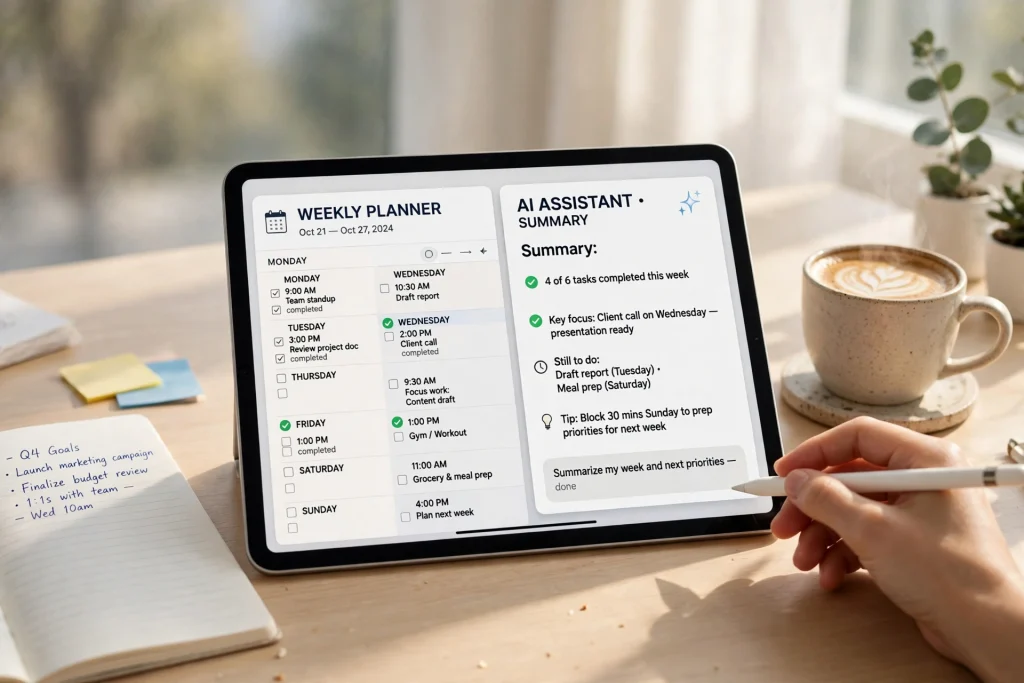
Your planner already knows your whole week — every task, deadline, and half-finished goal is written inside it. The problem is reading it all back. That is what the Ask GoodNotes AI assistant is for: instead of flipping through fifty pages, you ask a question and get an answer pulled from your own planner pages. Learning to ask GoodNotes planner questions properly turns a static PDF into something closer to a personal chief of staff.
Ask GoodNotes is built into GoodNotes 6 and works on your documents, handwriting included. Below are twelve copy-paste prompts that make it genuinely useful for planning — month reviews in seconds, weekly resets without the page-flipping, and quizzes generated straight from your study pages. If you are new to planning in the app, our guide on how to use a digital planner in GoodNotes covers setup first; this article picks up once your planner is filled in.
Quick answer: Open your planner in GoodNotes 6, tap the Ask GoodNotes (sparkle/AI) icon, and type a specific question about your pages — for example: “Summarize everything I planned for this month and list the tasks I did not finish.” The more specific the page range and the clearer the question, the better the answer. The twelve prompts below are ready to copy.
What Ask GoodNotes can actually do with a planner
Ask GoodNotes reads the document you have open — typed text and recognized handwriting — and answers questions about it, summarizes sections, and generates questions from the content. Inside a planner, that means it can:
- Condense a month of daily pages into a short review.
- Pull every unfinished task or deadline out of your weekly spreads.
- Summarize meeting notes you wrote inside your planner.
- Quiz you on study pages before an exam.
What it cannot do is edit the planner for you: it will not move tasks, fill in tomorrow’s page, or fix your handwriting. Think of it as a very fast reader sitting beside your planner, not a second planner. That is still a big deal — most of planning is reviewing, and reviewing fifty handwritten pages is where most people give up.
It also changes which planner you should choose. A planner with consistent page layouts, clear headings, and dedicated review, goal, and notes sections gives the assistant clean material to work with. Random one-off pages still work, but structured planners get noticeably sharper summaries, because the AI always knows what kind of page it is reading.
The 12 best Ask GoodNotes planner prompts
Type these exactly as written, or adjust the bracketed parts. They are grouped by job, so you can find the right one in seconds.
Review and reset prompts
1. The monthly review summary. Run this on the last day of the month, with the month’s pages open:
“Summarize everything in my planner for this month: what I planned, what I completed, and what I mentioned wanting to do but never scheduled.”
2. The five-minute weekly reset. Perfect on a Sunday evening, paired with the routine in our weekly-planning workflow:
“Look at this week’s pages and list every task that is not marked done, grouped by day, so I can move them into next week.”
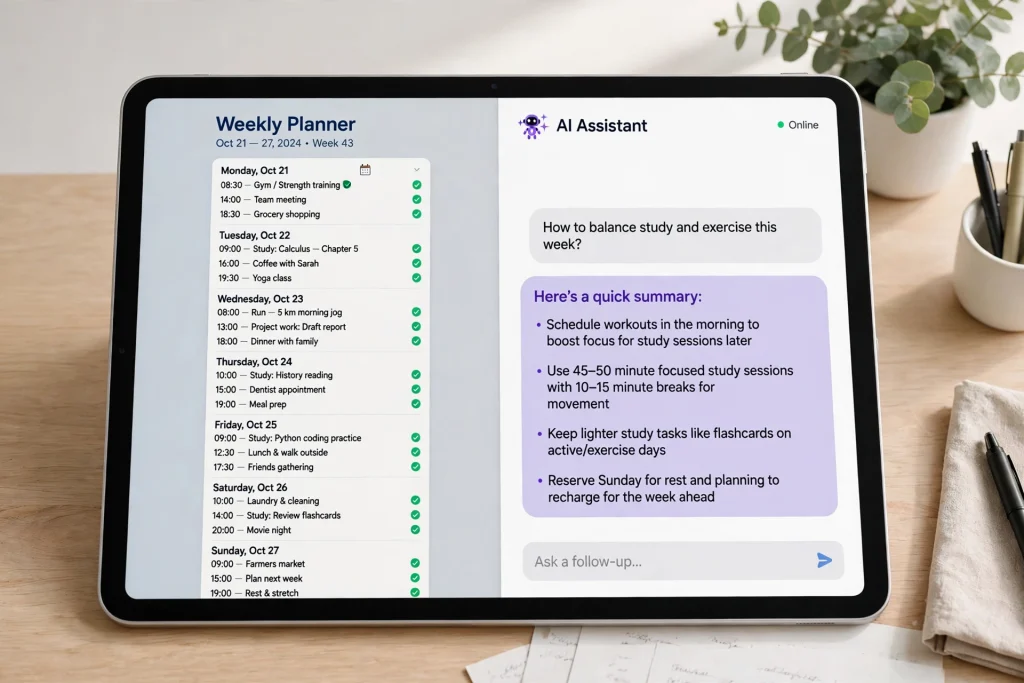
3. The goal check-in. Ask this mid-month to catch drifting goals while there is still time:
“Find every goal I wrote down in my planner this month. For each one, tell me what progress notes I made and which goals I have not mentioned again since writing them.”
4. The pattern spotter. This one surprises people — it works beautifully on journals and habit pages:
“Read my habit tracker and daily notes for the past two weeks. What patterns do you notice between my habits, my energy or mood notes, and my busiest days?”
Work and meeting prompts
5. The meeting-notes summary. If you take meeting notes inside your planner (a notebook section works too), select those pages and ask:
“Summarize these meeting notes into: key decisions, deadlines mentioned, and anything assigned to me.”
6. The deadline roundup. A lifesaver before a busy week:
“Search my planner for every date, deadline, and due date mentioned in the next 14 days and list them in date order.”
7. The project status check. For a project page or a few weeks of daily logs:
“Based on these pages, write a short status update for this project: what is done, what is in progress, and what appears to be blocked or waiting.”
Study prompts
8. Quiz me. The single most fun use of the feature, and the one students ask about most:
“Turn these study pages into 10 quiz questions with the answers hidden at the end, covering the definitions and formulas I highlighted.”
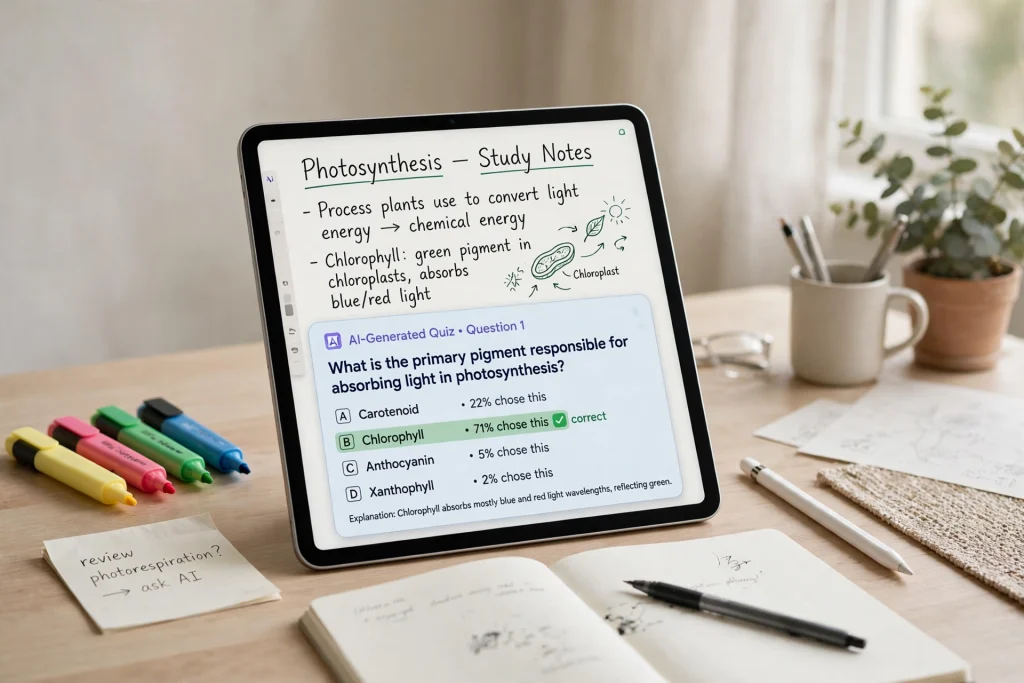
9. Explain it simply. Stuck on a concept you copied down in class?
“Explain the main concept on these pages in simple language, then give me one example I can remember in an exam.”
10. The flashcards shortcut. Pair this with a notebook like the 12-Tab Digital Notebook for GoodNotes, where lecture notes are easy to keep by subject:
“List the key terms from these notes with a one-line definition for each, in a format I can copy into flashcards.”
Life admin prompts
11. The brain-dump sort. After a messy capture page, ask:
“Read this brain-dump page and sort everything into: urgent tasks, errands, ideas to think about later, and things I can delete.”
12. The month-ahead preview. Run this right after your weekly reset:
“Look at everything scheduled in my planner for the coming month and warn me about busy weeks, clashes, or deadlines that land close together.”
Prompts 1, 2, and 12 together take about five minutes and replace the Sunday page-flip most planners dread. They work especially well in a well-structured planner like the 2027 Life Planner, where monthly, weekly, and goal pages are linked and consistently laid out — consistent layouts are simply easier for the AI to read.
Tips for getting better answers from Ask GoodNotes
- Be specific about the range. “This week,” “pages from October,” or a named section beats “my planner” every time. If the app lets you select pages or a section, do it before asking.
- Ask one thing at a time. A summary and a task list and a pep talk produces a mushy answer. Ask, read, then ask the next question.
- Neat-enough handwriting matters. Ask GoodNotes reads recognized handwriting. If answers come back thin, check that handwriting search works on the same pages — if search cannot find a word, the AI probably cannot either.
- Verify dates and numbers. AI summaries are drafts. Before you move a deadline or quote a figure from an answer, glance at the original page. Trust, but check.
- Save the answers you like. Copy good summaries onto a review page in your planner. In three months, those monthly summaries become the fastest year-in-review you have ever written.
Frequently asked questions
What is Ask GoodNotes?
Ask GoodNotes is the AI assistant built into GoodNotes 6. It answers questions about the document you have open, summarizes pages, and can generate study questions from your notes. Inside a digital planner, it is most useful for reviews, summaries, and pulling tasks and deadlines out of handwritten pages.
Does Ask GoodNotes work on handwriting?
Yes — it works on recognized handwriting as well as typed text, which is what makes it practical for planners. Clear, reasonably consistent handwriting gives the best results; if the app’s handwriting search can find your words, Ask GoodNotes can usually read them too.
Is Ask GoodNotes free?
Ask GoodNotes is part of GoodNotes 6, and AI features are tied to the app’s current plans and any included AI credits or limits, which Goodnotes can change. Check the GoodNotes plan comparison in the App Store or on the GoodNotes website for the current allowance before relying on it daily.
Can Ask GoodNotes plan my week for me?
It can review your pages, list unfinished tasks, flag clashes, and suggest priorities — but it cannot write into your planner or move things around. You still make the decisions and write the plan; the AI just does the reading and summarizing that used to eat your Sunday evening.
Can I ask GoodNotes planner questions on Android or Windows?
The GoodNotes apps on Android and Windows share most features, but AI availability can lag behind the iPad and Mac versions and depends on your plan. If the Ask GoodNotes icon is not visible in your app, check for an update first — the prompts in this article will work the moment the feature reaches your device.
Put your planner to work
A planner you only write in is a diary; a planner you can question is a system. Start with the weekly reset prompt this Sunday, add the monthly review at month’s end, and your planner will start answering back. Need a layout built for this workflow — linked monthly, weekly, and goal pages that AI reads cleanly? Browse the Temply Studio digital planner collection and find your match.
Temply Studio
Stop chasing your goals with sticky notes and scattered notebooks. Our premium digital planners and Canva templates are designed to help you plan with intention, stay consistent, and actually enjoy the process.

Questions about this guide?
Ask about the planner, share how you use it, or tell us what to cover next. Your email stays private.