
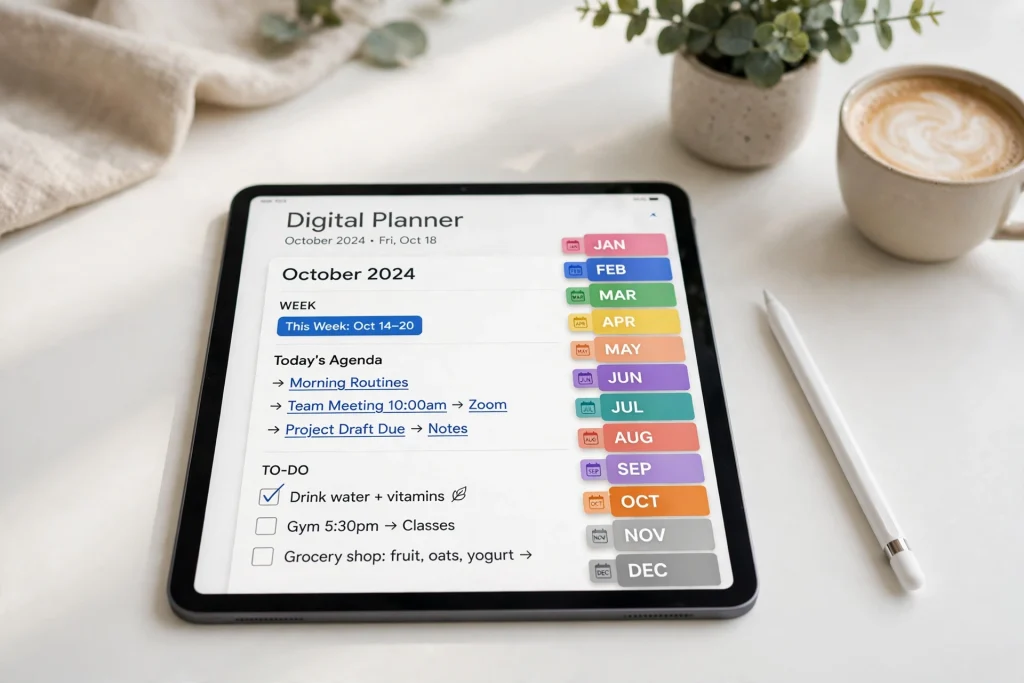
You tap a tab in your planner and… nothing happens. No jump, no new page — just a dead tap or an accidental scribble. When GoodNotes hyperlinks are not working, it feels like the whole planner is broken, but in almost every case the file is fine and the fix takes less than a minute. The problem is usually a mode, a setting, or the way the planner was imported or exported.
This guide walks through the seven fixes that solve the problem, in the order you should try them. If you are still setting up your planner for the first time, start with our beginner walkthrough on how to use a digital planner in GoodNotes — then come back here if the links misbehave.
Quick answer: If your GoodNotes hyperlinks are not working, tap the pen icon at the top of the screen to switch off editing (Read-Only mode), then tap the tab or link again. Links only respond when no pen tool is active. If they still fail, long-press the link and choose Open Link, update GoodNotes, or re-import the original planner PDF. Use the checklist below to find your exact cause in under two minutes.
Why GoodNotes hyperlinks stop working
A planner hyperlink is not a button drawn on the page — it is an invisible tap zone stored inside the PDF, pointing at another page. GoodNotes can only follow that zone when the app is in the right state. When links “break,” one of four things has usually happened:
- You are in editing mode, so your tap is read as a pen stroke, not a tap on a link.
- The app or file import glitched, so GoodNotes never registered the link layer.
- The page was duplicated or the file was exported flat, which strips or breaks the link zones.
- The source PDF never had real links — the tabs are just pictures.
The fixes below address each cause in turn. Try them in order; most people are done by fix two.
7 fixes for GoodNotes hyperlinks not working
Fix 1: Turn off the pen — use Read-Only mode
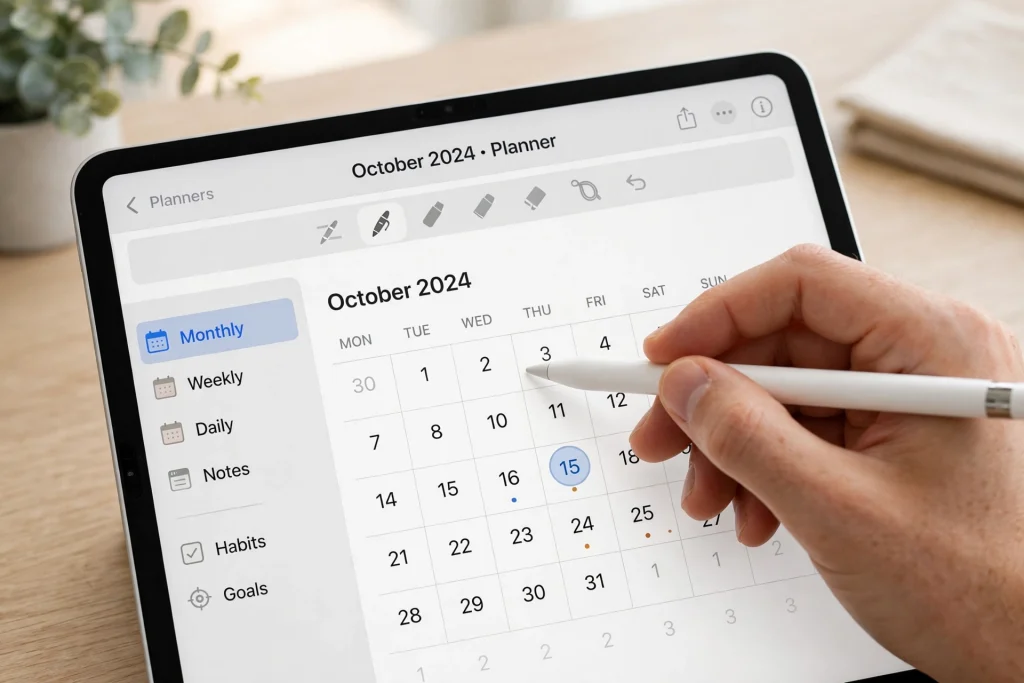
This solves the problem about nine times out of ten. When any tool is selected in the toolbar — pen, highlighter, eraser, lasso — GoodNotes treats every touch as editing. Tap the pen icon in the top toolbar so it is deselected. The toolbar disappears, the document switches to Read-Only mode, and your planner becomes a set of tappable pages instead of a canvas.
Now tap a month tab, a “today” button, or a table-of-contents entry. It should jump instantly. Remember to tap the pen icon again when you want to write — flipping between the two modes becomes second nature within a day.
Fix 2: Long-press the link and choose “Open Link”
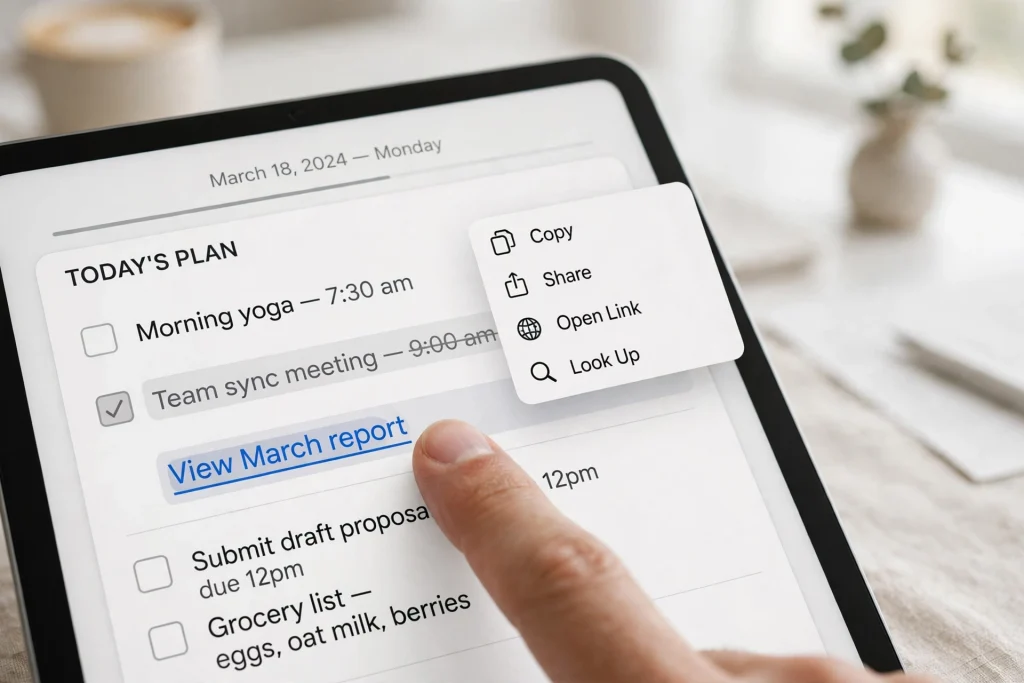
If tapping does nothing even in Read-Only mode, long-press directly on the tab or linked text. GoodNotes shows a small menu; if the link is alive, Open Link appears in it. Tapping it forces the jump and proves the link layer exists — the issue is tap detection, not the file.
This trick is also handy for links printed as ordinary text, like URLs in a notes section, where a quick tap can be mistaken for the start of a selection.
Fix 3: Update GoodNotes and your iPad software
Link handling has changed between GoodNotes versions, and older builds are known to mishandle links in large planner files. Open the App Store, search for GoodNotes, and install any pending update. Then check Settings → General → Software Update on your iPad and update iPadOS if one is waiting.
Restart the iPad after updating. It sounds old-fashioned, but a restart clears the cached document state that sometimes keeps a fixed app behaving like the old one.
Fix 4: Re-import the original planner file
Imports can go wrong quietly: a download interrupted halfway, a file unzipped incorrectly, or a copy that came through a messaging app instead of the original PDF. The planner opens and looks perfect, but its link layer never arrived intact.
Delete the imported copy from GoodNotes (export or back up any pages you have already written on first), download the planner again from the original source, and import the fresh file. Test a tab before you start writing in it again. If the fresh copy works, the old import was corrupted — this is the fix when every link in a planner is dead but other documents behave normally.
Fix 5: Check links on pages you duplicated
Duplicating a page copies its ink, but links that pointed from other pages to the original page still target the original — and links drawn on the duplicated page can behave inconsistently. If your tabs worked yesterday and stopped after you rearranged or duplicated pages, this is your cause.
Our detailed guide on how to use hyperlinks in a GoodNotes planner explains exactly how links behave when pages are copied, moved, or added, and how to organize extra pages without breaking navigation. The short version: duplicate sparingly, and re-test your main tabs after any big reshuffle.
Fix 6: Export as an editable PDF — never flattened
Sharing or backing up your planner can silently kill its links. When you export from GoodNotes, choose Editable PDF (PDF data format: editable) rather than Flattened. A flattened export merges everything — ink, images, and link zones — into a single picture-like layer, so the exported file has nothing left to tap.
If someone sent you a planner PDF and none of its links work anywhere, ask whether it was exported flattened or printed to PDF from another app. Both processes strip hyperlinks, and no setting inside GoodNotes can bring them back — you need the original file.
Fix 7: Test the source PDF outside GoodNotes
Still stuck? Open the original PDF in a different reader — Apple Books, the Files preview, or a desktop PDF app — and tap a tab there. Two outcomes:
- Links work elsewhere: the file is healthy, so the problem is your GoodNotes install. Re-import (fix 4) or reinstall the app after backing up your library.
- Links fail everywhere: the planner itself has no working link layer. The tabs are decorative images. Contact the seller — a properly made digital planner should navigate in any modern PDF app.
When the planner is the problem, not the app
Sometimes every fix checks out and the file is simply built badly: links pointing to the wrong pages, tabs that were never linked, or a free download that was flattened before sharing. If you are tired of debugging someone else’s file, switch to a planner whose links are tested before it ships. The Light Grey Hyperlinked Digital Planner for GoodNotes is built around its tab navigation, and the 2027 Life Planner links its monthly, weekly, and goal pages the same way — import either one and the tabs work from the first tap.
Frequently asked questions
Why are my GoodNotes hyperlinks not working?
Usually because a pen tool is active: in editing mode, taps are read as strokes, not link taps. Deselect the pen to enter Read-Only mode and tap again. If links still fail everywhere in one document, the import was likely corrupted or the PDF was exported flattened, which removes the link layer.
Do hyperlinks work in the free version of GoodNotes?
Yes. Following hyperlinks inside an imported planner is part of standard document viewing and works on the free plan. The free plan limits how many notebooks you can create, but a single imported planner with working tabs is not affected by that limit.
Why did my links stop working after I duplicated a page?
Duplicating copies the visible page, but the link map does not always follow the way you expect: links pointing to the original page still land there, and links on copied pages can misfire. Re-test your main tabs after duplicating or moving pages, and keep a clean, untouched copy of the original planner as a fallback.
Why don’t hyperlinks work in my exported PDF?
Almost certainly because the export was flattened. Flattening merges the page into one image-like layer and deletes the invisible link zones. Re-export from GoodNotes and choose the editable PDF format to keep links, handwriting editability, and outlines intact.
Do GoodNotes hyperlinks work on Android and Windows?
Yes — the GoodNotes apps for Android and Windows follow the same PDF links, and the same rule applies: switch out of editing mode before tapping. If a planner’s links work on iPad but not on your Android tablet, test the original PDF in another reader to confirm the file, then update the app.
How can I tell if a planner PDF really has hyperlinks?
Open it in any PDF reader, switch to a reading (non-editing) mode, and tap a month tab or index entry. A real hyperlink jumps to another page. If nothing happens in two different apps, the tabs are just artwork — the file was never linked, no matter what the listing pictures suggest.
Links fixed? Get back to planning
Nine times out of ten, it was the pen tool all along. Keep the Read-Only habit, export editable rather than flattened, and your planner’s navigation will stay as fast as the day you imported it. Ready for a planner that simply works — or a fresh design for the new year? Browse the Temply Studio digital planner collection and pick the layout that fits your routine.
Temply Studio
Stop chasing your goals with sticky notes and scattered notebooks. Our premium digital planners and Canva templates are designed to help you plan with intention, stay consistent, and actually enjoy the process.
Questions about this guide?
Ask about the planner, share how you use it, or tell us what to cover next. Your email stays private.