
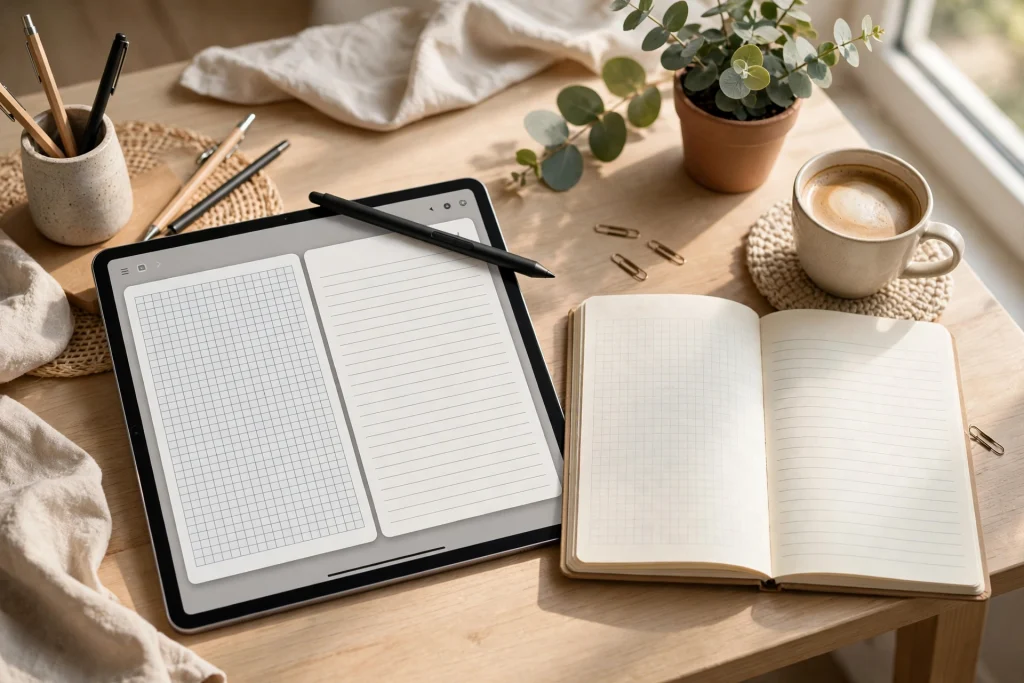
A well-designed digital notebook can completely change how you take notes on your iPad. The best digital notebooks for GoodNotes feel like paper but add powers paper never had: hyperlinked tabs that jump you across hundreds of pages in a single tap, searchable handwriting, and paper templates you can switch with two taps. Whether you are heading into classes, a busy work calendar, or a new journaling habit in 2027, choosing the right notebook matters more than most people expect.
The wrong layout slows you down — lined paper that fights your sketches, or a grid that makes journaling feel clinical. The right one disappears, leaving only your thoughts. This guide compares lined, grid, dot, and blank layouts side by side, breaks down the features that separate great digital notebooks from mediocre ones, and walks you through exactly how to import and use a notebook in GoodNotes. By the end, you will know precisely which layout and which notebook fit the way you think.
Lined vs grid vs dot vs blank: the layout comparison
Every digital notebook starts with the same question: what should the page look like? The four classic layouts each serve different brains and different tasks. Here is how they stack up for GoodNotes users in 2027.
Lined paper: the reliable all-rounder
Lined paper is the default for a reason. It keeps handwriting straight, suits long-form notes, lecture summaries, and meeting minutes, and it mirrors what most of us grew up writing on. If your notes are mostly words — class lectures, interview transcripts, daily journaling entries — lined paper is the safest choice.
The tradeoff is rigidity. Lines that help paragraph text become visual clutter when you sketch a diagram, draw a mind map, or do rough calculations. If you mix drawing with writing often, lined is not your best friend.
Grid paper: built for structure
Grid (graph) paper is the favorite of engineers, math students, and anyone who draws tables, charts, or wireframes by hand. The squares give you instant alignment: numbers line up in columns, boxes stay proportional, and circuit diagrams look clean. Grid also works surprisingly well for language learners who want uniform character sizes.
The downside is busyness. A page of grid can feel loud when all you want is a quick to-do list or a reflective paragraph. Some people also find that grid encourages small, cramped handwriting because the squares invite you to fill every one.
Dot grid: the creative middle ground
Dot grid is the bullet journal community’s layout of choice, and for good reason. The dots guide your writing and keep elements aligned, but they fade into the background far more than full grid lines. It is ideal for a mix of text and light sketching: habit trackers, mood logs, travel notes, and idea maps all shine on dot grid.
Dot grid does have limits. If you need precise alignment for technical diagrams or accounting-style tables, dots are too subtle. And people with very loose handwriting sometimes find lines guide them better than dots do.
Blank paper: total freedom
Blank pages are for free thinkers. Visual note-takers, sketchnoters, artists, and brainstormers love blank paper because nothing constrains the layout. Mind maps expand in every direction, flowcharts grow organically, and illustrated journal pages look their best unlined.
The cost is structure. On blank pages, handwriting tends to drift, drift, and drift — usually upward and to the right. If neatness matters to you, blank pages demand more discipline.
Must-have features in digital notebooks for GoodNotes
Layout is only the starting point. The digital layer is what makes a notebook in GoodNotes worth paying for. When you are comparing digital notebooks for GoodNotes, check for these five features before anything else.
Hyperlinked tabs
Hyperlinked tabs are the single biggest upgrade over paper. In a well-built notebook like the 12-Tab Digital Notebook for GoodNotes, every tab is a tap-to-jump link: tap “Projects” and you are there instantly, no swiping through 200 pages. Good notebooks also include monthly and weekly index pages with working links. This is the feature that makes a 300-page digital notebook faster to navigate than a 30-page paper one.
Multiple paper templates in one file
You do not have to commit to one layout for life. The best digital notebooks bundle several paper templates — lined, dot grid, grid, and blank — so you can pick the right page for each task. Taking lecture notes today and sketching a mind map tomorrow? Use both without buying two notebooks. Look for notebooks that make switching templates as simple as tapping a link on an index page.
Annotation layers and templates sections
A strong notebook reserves space for annotation: margin columns on lined pages, blank “ideas” pages between sections, and sticker or annotation pages you can duplicate. Some notebooks include pre-built templates such as Cornell notes pages, meeting-minute layouts, and project trackers. These little additions save you from recreating the same layout by hand every week.
Clean PDF import behavior
Every digital notebook for GoodNotes is ultimately a PDF, and how it was built determines how it behaves. Well-made notebooks import as crisp vector pages that stay sharp at any zoom, with hyperlinks that work the moment you tap them in read mode. Avoid notebooks exported as flat images — they pixelate when you zoom and the file sizes balloon.
Undated pages
Undated notebooks are the unsung hero of digital planning. Unlike dated notebooks, you can start any day of the year and never lose a page to a week you skipped. If you pair your notebook with a planner, an undated option like the Cute Undated Digital Life Planner for GoodNotes means one purchase genuinely lasts forever — you just duplicate the months you need.
How to choose the right notebook by use case
There is no universal “best” layout — there is only the best layout for what you actually do with your iPad. Match yourself below.
Students: grid or lined with hyperlinked tabs
Students juggle the widest range of note types: lecture transcripts, problem sets, lab reports, and study schedules. Lined paper handles the writing-heavy days; grid handles math, chemistry structures, and economics graphs. The 12-Tab Digital Notebook for GoodNotes is a strong fit because its tabs let you keep one notebook per subject — or one notebook with a tab per class — and the included template variety covers both layouts. Bonus: GoodNotes’ searchable handwriting turns a semester of notes into a searchable study database at exam time.
Journalers: dot grid or blank
Journaling is personal and visual, so dot grid is the sweet spot for most people: it guides entries without boxing them in, and it looks beautiful under washi-tape-style digital stickers. If your journal is mostly long reflective writing, lined is fine; if you collage, sketch, or mood-track, lean dot grid or blank. Look for notebooks with dedicated monthly divider pages so you can flip to the right month in one tap.
Work notes: lined with meeting templates
Work notes need speed and structure. Lined pages keep meeting notes readable, while built-in meeting-minute or project templates save you from reinventing the wheel each week. Hyperlinked tabs matter more than ever here — “Projects”, “1:1s”, “Ideas” tabs turn your notebook into a searchable work archive. Pair it with a planner such as the Light Grey Hyperlinked Digital Planner for GoodNotes so action items land on dated pages while the notebook holds the details.
Mixed users: bundle layouts
If you genuinely do a bit of everything — and most people do — choose a notebook that ships with all four layouts rather than forcing yourself to pick. Start each new section with the layout that suits the content, and do not feel guilty about blank pages next to lined ones. The digital notebook adapts to you, not the other way around.
How to import and use a digital notebook in GoodNotes
First time? Importing a digital notebook takes under a minute. Here is the exact process.
- Download the PDF file. After purchase, download the notebook PDF to your iPad — via email, iCloud Drive, or Safari. Keep the file somewhere easy to find, like a “Digital Notebooks” folder in Files.
- Open GoodNotes and create a new notebook. Tap the “+” in the library, choose “Import,” and select the PDF you just downloaded. GoodNotes will build a new notebook from it.
- Verify the hyperlinks. Tap once outside any text box to enter reading mode, then tap a tab. If you jump to the right section, the links are working. (If tapping just selects the tab, you are in editing mode — tap the pen tool off and try again.)
- Write with the pen tool. Select the pen or fountain pen tool, pick your color and thickness, and start writing. Use two fingers to scroll so you do not accidentally draw while navigating.
- Duplicate pages for templates you love. Long-press a page thumbnail in the sidebar and choose “Copy,” then paste it wherever you need another copy — perfect for repeating a habit tracker or a favorite dot-grid layout.
- Back it up. Enable GoodNotes’ automatic backup to iCloud or another cloud service so your notes survive a lost or broken iPad. A backup once configured runs silently in the background.
Organization tips that actually work
Getting the notebook is step one; keeping it useful is step two. These five habits separate notebooks people love from notebooks people abandon by February.
- One notebook per role, not one giant notebook. Keep work, study, and personal notes in separate notebooks. Tabs are fast, but role separation keeps search results clean.
- Name tabs for retrieval, not aesthetics. “Q1 Projects” beats “My Stuff” when you are searching six months later. GoodNotes indexes your handwritten text, but clear tab names get you there in one tap.
- Use the outline feature. GoodNotes lets you add outline entries to any page. Bookmark key pages — the project kickoff, the exam summary, the decision log — so they are one tap away.
- Archive, don’t hoard. At the end of a term or quarter, export completed sections as PDF and start fresh pages. A 500-page notebook with broken links is worse than a fresh 50-page one.
- Standardize your pen colors. Pick a personal system — blue for notes, red for action items, green for ideas — and stick to it across every notebook. Consistency makes scanning fast.
Frequently Asked Questions
What is the best layout for digital notebooks for GoodNotes?
It depends on your content. Lined is best for writing-heavy notes, grid for math and technical diagrams, dot grid for a balance of writing and light sketching, and blank for visual note-taking and brainstorming. Many of the best digital notebooks for GoodNotes include all four layouts so you can switch per task.
Do hyperlinked tabs really work in GoodNotes?
Yes. Hyperlinked tabs are standard PDF links, and GoodNotes supports them natively. Tap a tab in reading mode and you jump straight to that section. They work on import with no setup required, as long as the notebook was built with real links rather than decorative tab images.
Can I mix lined, grid, and dot pages in one notebook?
Absolutely. In GoodNotes you can add pages from different paper templates into a single notebook, so one notebook can hold lined lecture notes, grid problem sets, and dot-grid journal pages side by side. Some notebooks come pre-bundled with all three layouts for exactly this reason.
How is a digital notebook different from a digital planner?
A notebook is freeform space for notes, ideas, and journals; a planner adds dated structure — calendars, daily schedules, task lists, and goal tracking. Many people use both: the notebook for thinking, the planner for scheduling. If you want an all-in-one option, the Cute Undated Digital Life Planner for GoodNotes pairs planner structure with plenty of freeform note pages.
Ready to find your match? The right notebook makes note-taking something you look forward to instead of something you postpone. Compare layouts, pick the features that matter for your workflow, and browse our digital notebook collection to find the one that fits the way you think.
Temply Studio
Stop chasing your goals with sticky notes and scattered notebooks. Our premium digital planners and Canva templates are designed to help you plan with intention, stay consistent, and actually enjoy the process.
Questions about this guide?
Ask about the planner, share how you use it, or tell us what to cover next. Your email stays private.