




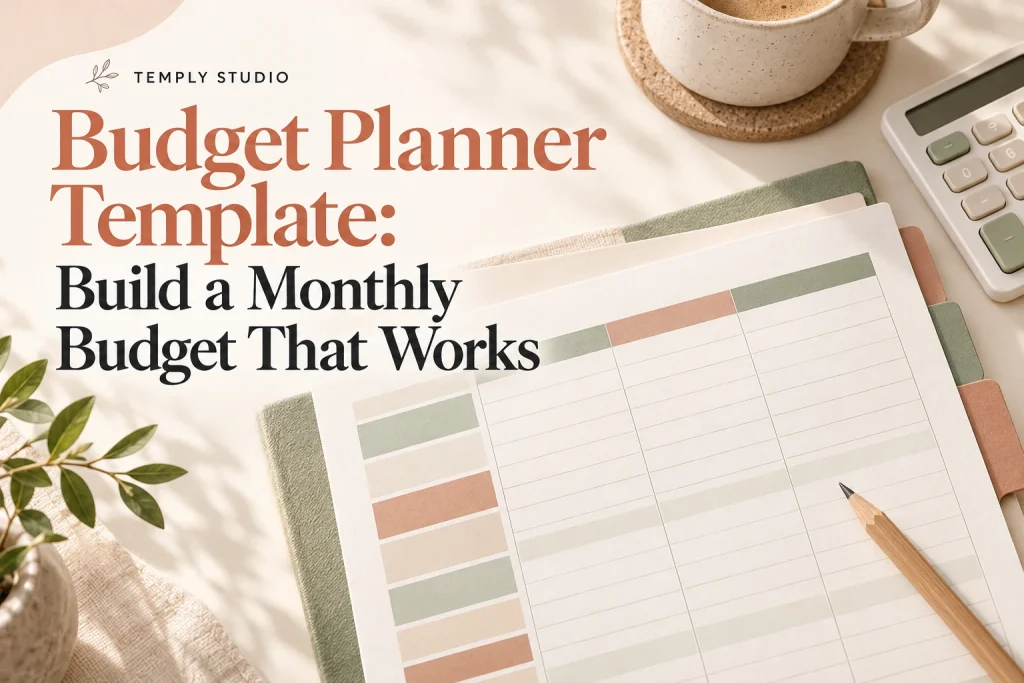
Quick answer: Start with categories you can classify consistently: housing, utilities, groceries, transport, health, debt payments, savings and discretionary spending. For example, a $42 grocery purchase goes under Groceries; keep a separate line for a savings transfer so it is not counted twice as spending.
This is an organization example, not personalized financial advice. Adapt categories to your records, keep sensitive account details off a shared planner and reconcile against actual statements.
What to decide before you begin
Before you begin, choose the specific example below and keep any original file or record intact. This is an organization example, not personalized financial advice. Adapt categories to your records, keep sensitive account details off a shared planner and reconcile against actual statements.
- How many categories do you actually need? Eight to twelve covers most households; more than that and every receipt becomes a debate.
- Which categories repeat every month? Fixed commitments like rent, internet and insurance belong on the sheet, plus the variable categories you always overspend on, like groceries or transport.
- Where do savings transfers and debt payments go? Give them their own rows so they stay visible but are never double-counted as spending.
- What size will you print? Check whether you need A4 or US Letter before laying out the table — they are not interchangeable.
Step-by-step workflow
- 1. Write the month and the income amount you are planning around. Keep planned amounts separate from actual transactions.
- 2. List fixed commitments such as rent, internet and insurance. Give each a category and a planned amount.
- 3. Add variable categories such as groceries, transport and leisure. Example: record a $42 supermarket receipt as Groceries rather than an unexplained “miscellaneous” entry.
- 4. Separate debt principal, fees and savings transfers as needed for your own records. Do not count a transfer between your own accounts again as a new purchase.
- 5. At the end of the week, assign uncategorized items and compare actual category totals with the plan. Split mixed receipts only when the extra detail will help a decision.
- 6. At month end, reconcile totals to the records you use, note one category to adjust and copy only useful categories into next month’s page.
A printable budget-categories sheet, worked example
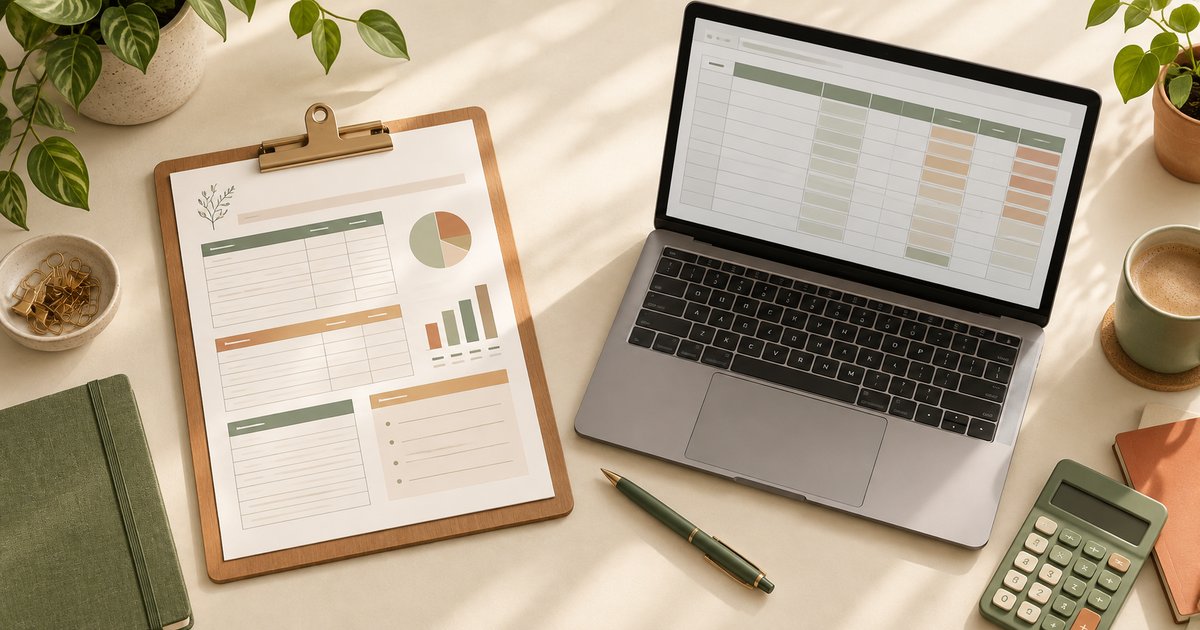
Here is a simple layout you can copy onto a printable page. Give each category a planned amount, write actual spending in as receipts come in, and note the difference at month end.
| Category | Planned | Actual | Difference |
|---|---|---|---|
| Housing | $1,200 | $1,200 | $0 |
| Utilities | $180 | $172 | +$8 |
| Groceries | $420 | $42 | |
| Transport | $150 | ||
| Health | $60 | ||
| Debt payments | $250 | ||
| Savings transfer | $300 | ||
| Discretionary | $140 |
The $42 supermarket receipt above is the first entry under Groceries — the category keeps a running total through the month instead of one line per receipt. The savings transfer is a planned movement between your own accounts, not an expense, so it never inflates the spending totals.
Print tip: leave at least 6 mm (a quarter inch) inside every edge for the non-printable margin on home printers, and print at actual size rather than fit-to-page if you plan to write in the cells by hand.
Use a small checklist to protect quality
- Every category name matches the way you already think about your spending.
- Text and cell borders stay readable at the size you will actually print.
- The table fits your paper (A4 or US Letter) with margins inside the printable area.
- A black-and-white test print is legible before you commit to a batch.
- There is room to write actual amounts by hand in every row you will use.
Common mistakes to avoid
- Printing with fit to page when the design requires actual size.
- Ignoring the non-printable edge of a home printer.
- Using heavy backgrounds where light ink coverage is more practical.
- Binding through a writing area.
- Assuming a4 and us letter are interchangeable.
How this fits a reusable system
For the next review, keep the original record and a dated working version. Print a fresh copy of the category table each month and file the filled sheet — the archive is what turns one tidy page into a trend you can actually budget against.
Continue with the Printables and Templates hub, or review the related Temply Studio products and their individual file details before choosing a template.
For platform-specific details, consult Adobe Acrobat Help. Use the official source for current feature, file, licensing, or policy information instead of relying on an old screenshot or an unverified claim.
Frequently asked questions
How many categories should I use?
Eight to twelve covers most households. If “miscellaneous” keeps growing, review its transactions and add a specific category only when it will stay useful.
Should I keep an editable source copy?
Keep the original file or record and a dated working copy. The editable version is what lets you add a category next month without rebuilding the sheet.
What should I check before relying on the result?
Check that every receipt from the week has a category and that the actual totals reconcile against your bank or card records. A row that never moves usually means the category is too narrow, or unused.
What should I review next time?
Look for one adjustment, not a full redesign: a category that always overruns, an unused row to merge, or a cleaner split between needs and wants. Copy the updated list into next month’s page instead of starting from a blank sheet.
Conclusion
Start with the worked example above and adapt it to your own records. Review individual product specifications before choosing a Temply Studio template; the workflow does not establish features in any specific product.
Related guide
Continue with the Productivity & planning guides, or read How to Set Up a Sinking Funds Tracker for another focused workflow.
For a trip, separate one-off costs from daily spending. The vacation budget guide gives examples for transport, lodging, and activities.
Temply Studio
Stop chasing your goals with sticky notes and scattered notebooks. Our premium digital planners and Canva templates are designed to help you plan with intention, stay consistent, and actually enjoy the process.



Questions about this guide?
Ask about the planner, share how you use it, or tell us what to cover next. Your email stays private.