




Quick answer: To reuse an undated digital planner, keep one untouched master file, create a fresh working copy for each planning cycle, add only the dates you actually need, and archive the completed copy separately. Before you commit to a new cycle, test the planner’s navigation, confirm what can be duplicated or edited, and keep your original download safe.
An undated planner can reduce the pressure to “start on the right date,” but reusable does not mean every file behaves the same way. Some planners are simple PDFs, some contain hyperlinks, and some include editable source files. Treat the individual product instructions as the source of truth for what can be reused, duplicated, edited, or imported.
Why an undated planner is reusable
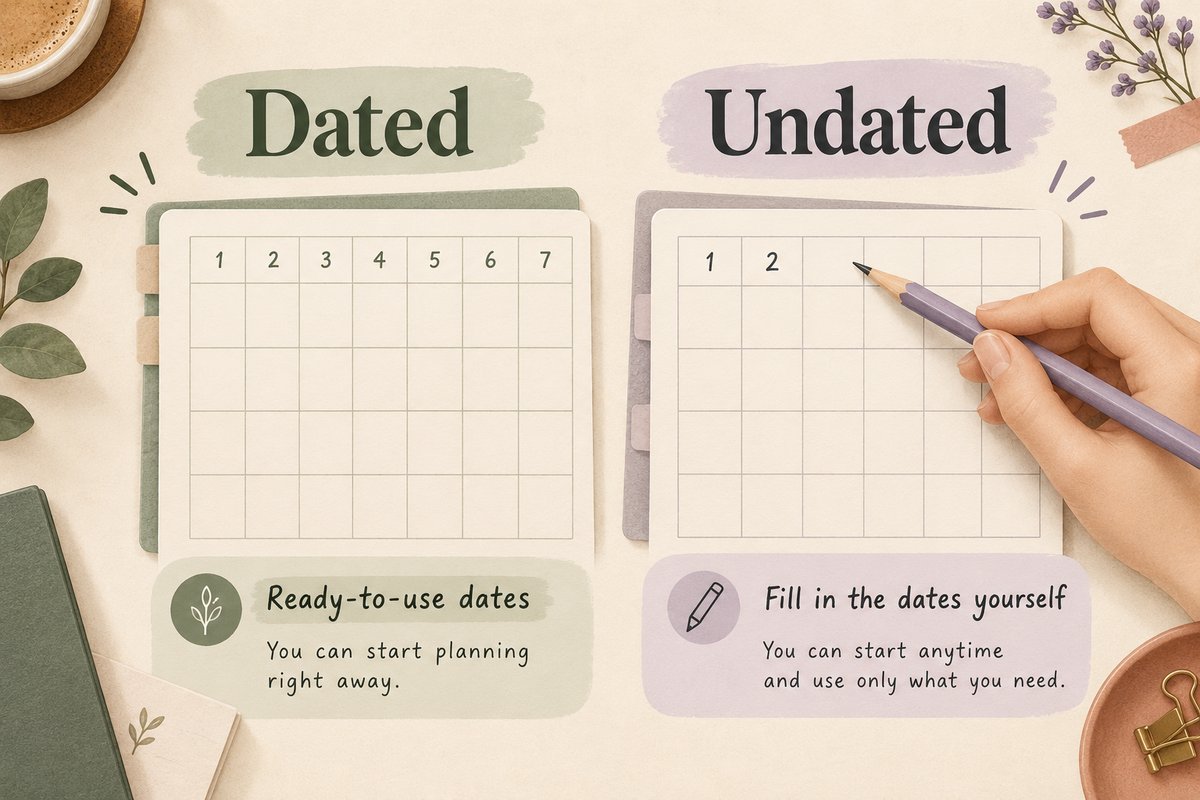
A dated planner assigns calendar dates to pages in advance. An undated planner leaves the calendar fields open so you decide when a month, week, or day begins. That makes it easier to pause for a few weeks and return without creating a trail of unused dated pages.
The practical advantage is flexibility, not unlimited technical compatibility. If you want a broader comparison first, read the dated vs undated digital planner guide.
Start with a clean master file
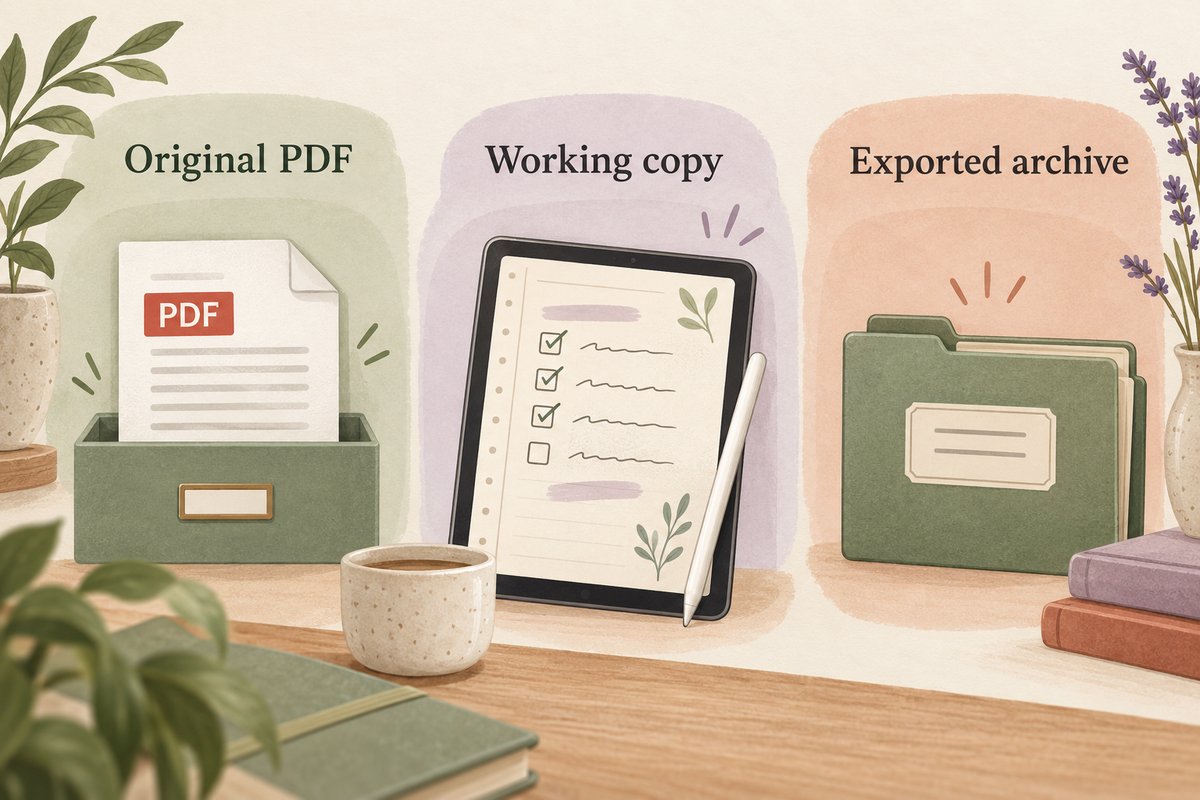
Before writing, highlighting, duplicating pages, or moving sections, save the original download in a folder you will not use for everyday planning. Give it a clear name such as Planner-Master-Original.pdf. The goal is simple: if the working copy becomes cluttered, corrupted, or difficult to organize, you still have a known starting point.
Do not assume that exporting a used planner creates a perfect replacement for the original. An export can behave differently from the source file, especially when hyperlinks, outlines, annotations, or app-specific features are involved. Keep the purchased or original file separate from exports.
Create one working copy per planning cycle
Duplicate or re-import the master according to the instructions for the app you use. Name the new file for the period or purpose, for example:
- 2026 Q4 Personal Planner
- Freelance Projects – September
- Semester 2 Study Planner
- Home Planning – Winter
A period-based name helps you distinguish the active file from archived copies without putting calendar dates into every page immediately.
Use a naming convention you can maintain
Choose one pattern for working copies, such as Planner – Purpose – Period. Consistent naming makes it easier to find the active file, sort archives, and avoid editing an old copy by mistake. Include a version number only when you actually maintain multiple versions.
Add dates gradually instead of dating the entire year
One of the easiest ways to lose the benefit of an undated planner is to spend a long session filling every future date before you know how consistently you will use the file. Start with the next month or the next two to four weeks. Add more dates only when the current period is working.
This also makes it easier to change the way you use daily or weekly pages. If you discover that a weekly overview is enough for quiet weeks, you do not need to maintain hundreds of pre-dated daily pages.
Reuse pages carefully
If the planner or note-taking app allows page duplication, keep a clean version of any layout you expect to reuse. A practical pattern is to maintain a small “templates” section inside the working document with blank weekly, daily, notes, project, or tracker pages. Duplicate from that section rather than copying a page that already contains handwriting or old dates.
Not every PDF workflow preserves every interactive feature after duplication or export. After making structural changes, test a known tab or index link before continuing. For Goodnotes-specific navigation, see how to use planner hyperlinks in Goodnotes.
Worked example: start October without losing September
Suppose your September working copy contains notes you want to keep. Save a backup that you can reopen, label that copy for September, and create a new working document from the untouched master. Name it Personal Planner – October 2026.
On the blank month page, place October 1 under Thursday and check the remaining dates against a calendar. Prepare only the weeks you need now. Put a November appointment on a clearly named future-dates list until you prepare that month, and use a separate calendar reminder if an alert matters.
Test a month link, a weekly destination, and a return link before adding important notes. If you duplicate a blank week, check how you will reach the copy: existing month or index links do not automatically become links to that new page. Use the app’s bookmarks or other supported navigation when appropriate.
Use a simple reset checklist
- Archive or export anything you need from the previous cycle.
- Confirm your master file is still untouched and readable.
- Create a new working copy.
- Test one or two navigation links if the PDF is hyperlinked.
- Add only the next planning period’s dates.
- Duplicate only the blank layouts you expect to use.
- Rename the working file with the period or purpose.
- Back up the new working copy before making large structural changes.
This is a file-management routine, not a productivity guarantee. The useful part is reducing accidental overwrites and making each planning cycle easier to identify.
Keep planning data separate from the original
The original file should remain a source asset. Your handwriting, personal notes, project information, and completed trackers belong in the working copy. This separation makes it easier to start fresh without deleting history.
If your planner contains information that is sensitive at work, school, or home, choose storage and backup practices appropriate to that information. A planner template is not a secure record system by itself.
In Goodnotes, the PDF export format affects the result: Editable PDF preserves original PDF hyperlinks and outlines, while Flattened PDF does not. For recoverable editing in the app, also keep a Goodnotes-format backup using its documented backup workflow. Reopen a test copy before relying on it.
Archive completed cycles
When a cycle ends, decide whether you need the whole working file, a PDF export, selected pages, or no archive at all. Use three sibling folders inside Planner: Original for the untouched download, Active for current work, and Archive for completed cycles. The digital planner backup and file organization guide explains the difference between an original source, a working document, a backup, and an export.
Do not keep dozens of unnamed copies in Downloads. The benefit of reuse disappears quickly when you cannot tell which file is the current one.
Common mistakes when reusing an undated planner
Overwriting the only clean copy
Always preserve a master before adding dates or annotations.
Dating too far ahead
Start with a short period. You can extend the planner later if the layout fits your routine.
Assuming every page can be duplicated safely
Check the app and product instructions, then test the copied page and any navigation it contains.
Using export as your only backup
An exported PDF can be useful for viewing or sharing but may not preserve the same editing behavior as the working document.
When an undated planner may not be the best choice
A dated planner may suit you better when you need to schedule appointments far into the future, coordinate a fixed academic calendar, or reduce setup work. Reusability is valuable only if the repeated setup remains manageable.
Review the reuse process after two cycles
After using the planner twice, note which blank layouts you actually duplicated, which sections were ignored, and which setup steps were unnecessary. Remove maintenance that does not help a decision. Reuse should become simpler over time rather than producing a larger checklist every cycle.
Final quality check
Before relying on the workflow, reopen the file or page and verify the result in the context where it will actually be used. Confirm labels, links, dates, filenames, layout, and any output that matters. Keep the source copy separate so a failed experiment remains reversible.
Frequently asked questions
Can I reuse the same undated planner every year?
Often, yes, if the file is genuinely undated and the license and product instructions allow the intended reuse. Keep the original file and create a fresh working copy rather than deleting old content from the only copy.
Should I erase last year and use the same document?
A fresh copy is usually easier to manage because it preserves the archived version and reduces accidental leftovers from the previous cycle.
Do hyperlinks still work after I duplicate pages?
Behavior depends on the PDF and the app. Test navigation after duplicating or exporting rather than assuming the result is identical to the source.
Do I need to date every page before I start?
No. Dating only the next few weeks or month is a practical way to keep setup proportional to actual use.
Choose the next step
If you are still deciding between dated and undated formats, use the format comparison. If you already know you want a digital planner, browse the Temply Studio digital planner collection and verify the exact files, dates, navigation, software requirements, delivery, and license on the individual product page before choosing.
Temply Studio
Stop chasing your goals with sticky notes and scattered notebooks. Our premium digital planners and Canva templates are designed to help you plan with intention, stay consistent, and actually enjoy the process.



Questions about this guide?
Ask about the planner, share how you use it, or tell us what to cover next. Your email stays private.