

Quick answer: GoodNotes for project management works best as a single visual hub where tasks, timelines, and deadlines live in one notebook you open every day. Set up a dedicated project notebook with a dashboard page, a task list, a timeline spread, and a weekly review page, then use hyperlinks, the lasso tool, and handwriting search to move fast. It sends no reminders and cannot replace a team tool, but for personal projects it is a calm, flexible way to keep everything in view.
GoodNotes for project management is not the first thing most people picture when they hear “project management.” They imagine a board full of cards or a spreadsheet with a hundred rows. But for freelancers, solopreneurs, students, and small business owners, the problem is rarely a lack of features — it is that the tool is too complicated to open, too noisy to focus on, and too rigid to match how a real project actually moves. A GoodNotes project notebook solves that differently: one place where the plan, the tasks, and the deadlines live together, written in your own hand.
This guide shows you a setup that works: how to build a project notebook, design task lists you will check, draw timeline pages, keep deadlines from slipping, and run a fifteen-minute weekly review — plus the honest limits, because the best system is one you trust. If you are new to planning in GoodNotes, start with our beginner’s guide.
GoodNotes for project management: What Makes It Work
Most project tools force you into their way of working. GoodNotes does the opposite: it gives you a blank page, a pen, and a few powerful tools, and lets you design a system that matches your brain. That freedom is why it works so well for personal projects and small businesses, where the project manager and the person doing the work are the same person.
First, everything is in one place. Your goal, task list, timeline, meeting notes, and weekly review can all live in one notebook. That sounds simple, but it is exactly what most project tools fail at — they scatter information across boards, docs, chats, and files until nobody can find the plan anymore.
Second, handwriting makes you think. Writing a task by hand forces you to decide what it is, who is doing it, and when it is due. Typing takes two seconds and zero thought; handwriting makes you commit — and you remember the tasks you wrote down and the deadlines you circled.
Third, the notebook is flexible. A project rarely follows the plan you wrote on day one: tasks get added, deadlines move, priorities flip. In a rigid app, every change means clicking through menus; in GoodNotes, you lasso a task and drag it to a new date. The notebook bends, and the project keeps moving. Finally, GoodNotes is calm — no notifications, no red badges, no activity feed. When you open your project notebook, you see your project, not everyone else’s.
Set Up a Project Notebook in GoodNotes
Step 1: Create one notebook per project
Create one notebook per project, not one notebook for everything. When projects share a notebook, tasks blur together and priorities get muddy. Give it a clear name, such as “Website Redesign 2026,” and pick a cover that is easy to spot. If you use a template planner, duplicate it and rename the copy for the project.
Step 2: Build a project dashboard
The first page should be a dashboard: a single page that shows, at a glance, where the project stands. Include the goal in one sentence, the deadline, the three most important milestones, the top three tasks for this week, and a short status line you update in your weekly review, such as “On track, waiting on supplier quote.” Open it first every morning — if it takes more than thirty seconds to read, simplify it.
Step 3: Add the core pages
After the dashboard, add the pages your project needs: a project overview, a master task list organized by phase, a timeline page, a weekly review template, dated meeting notes, and a scratch page for ideas. A small project may need only a dashboard, a task list, and a timeline — add more only when you feel their absence.
Step 4: Use hyperlinks and tabs to navigate
GoodNotes supports hyperlinked PDFs, and a good planner template is full of them. In a planner like the 2027 Business Planner or the 2027 Solopreneur Planner, the tabs are tappable links that jump you straight to the right section — tapping “Tasks” beats swiping through forty pages, and speed is what keeps you opening the notebook every day. If you built your own notebook, use the outline feature to bookmark key pages and favorite your dashboard. The rule is simple: if it takes more than three taps to reach your task list, you will stop checking it.
Design Task Lists You Will Actually Use
Write tasks as actions, not topics
A task should start with a verb and name a concrete outcome. “Website” is not a task; “Draft homepage copy” is. “Marketing” is not a task; “Email three influencers about the launch” is. When every item is an action, you can pick one up and do it without thinking. Add just enough context — a due date, an owner, and any dependency, such as “after the designer sends the logo.” Keep it to one line; if a task needs a paragraph of explanation, it is probably two or three smaller tasks — break it down.
Organize by phase, not by date alone
Group your master task list by project phase — research, planning, build, review, launch — rather than dumping everything into one long list. Phases give the list a shape you can read at a glance and make it obvious which tasks matter now. Within each phase, order tasks by the sequence they need to happen, use checkboxes so completed tasks are visibly done, and leave a margin for notes like “blocked — waiting on supplier.” Each week, pull the tasks that matter into a short list of five to eight items: a master list of sixty tasks is a reference document, but a weekly list of five to eight is a plan. If everything is a priority, nothing is.
Move tasks with the lasso tool, and prune weekly
This is where GoodNotes beats paper. When a task’s date changes — and it will — select it with the lasso tool, drag it to its new position, and carry on. No crossing out, no rewriting, no messy page. Use the lasso to move whole groups of tasks between phases, or to pull a task from the master list onto your weekly page. A list also grows stale fast, so prune it in your weekly review: delete tasks that no longer matter, break big tasks into smaller ones, and add new ones. A list reviewed weekly stays trustworthy; one never reviewed becomes a graveyard you stop opening.
Build a Timeline Page That Shows the Whole Project
A task list tells you what to do. A timeline tells you when, in what order, and whether the plan is realistic — without one, a project can look fine on paper while quietly running out of time. With one, problems show up early, when you can still fix them.
Draw a simple Gantt-style chart by hand
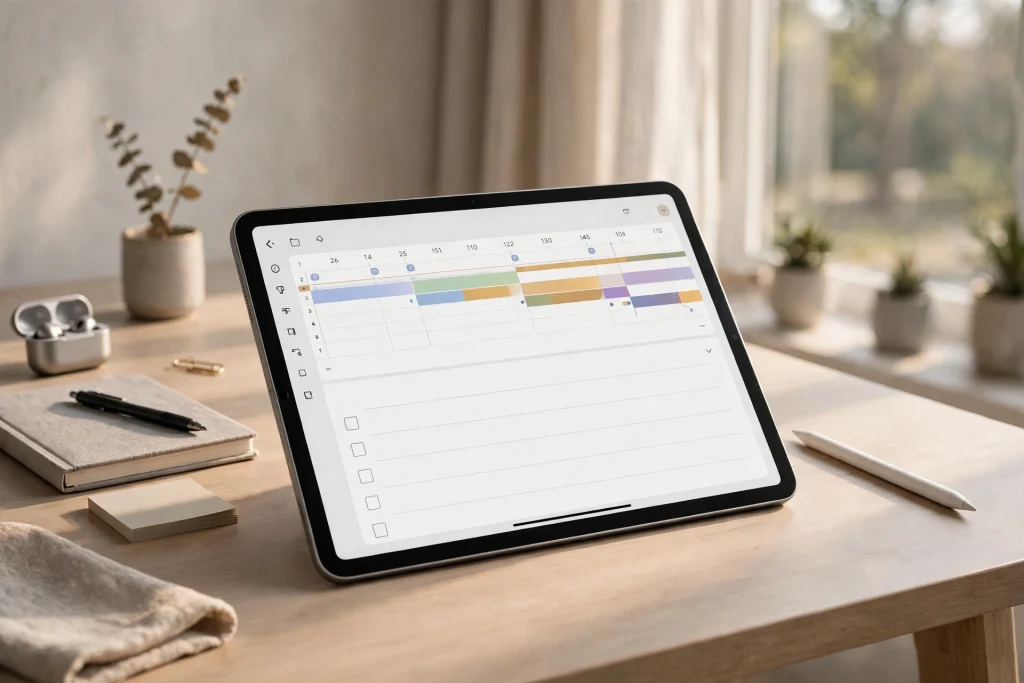
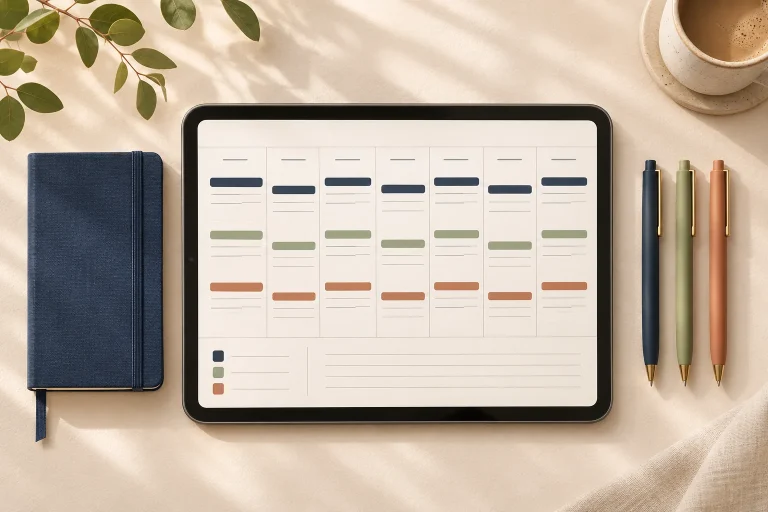
You do not need a Gantt app to make a Gantt chart. On a landscape page, draw a horizontal axis across the top divided into weeks or months, list the phases down the left side, then draw a horizontal bar for each phase from its start week to its finish week. Use the shapes tool for clean bars and different colors for different phases or people, and mark milestones with a diamond or a star: “design approved,” “first draft complete,” “launch day.” These checkpoints tell you whether the project is on track. Keep the timeline on one spread — if it needs four pages, it is too detailed. GoodNotes 6 also includes a zoom window that magnifies a section of the page while you write, which helps with the small labels and dates on a timeline.
Update the timeline when reality changes
A timeline is a living document, not a poster. When a phase slips, move its bar; when a milestone is hit early, mark it done; when a new phase appears, add a row. Update it in your weekly review so it never drifts more than a week from reality — a timeline a month out of date is worse than no timeline at all.
Keep Deadlines Visible and Honest
Deadlines fail quietly: one passes, then the next, and suddenly the project is a month late. GoodNotes can help, but only if deadlines are visible in more than one place — put every hard deadline on the timeline page and on the dashboard, since one that exists only in a task list is easy to miss. Give every task a due date, even a soft one: a task without a date is a wish, not a plan. Work backwards: if the launch is on the 30th, the review needs to happen by the 25th, the draft by the 20th, and the research by the 15th.
Be honest with yourself: if a date was always unrealistic, change it deliberately and note why, rather than quietly letting it pass. A revised deadline is a decision; a missed deadline nobody acknowledges is a habit. Make these calls in the weekly review. One honest limitation: GoodNotes will not remind you about a deadline — there are no automated reminders or push notifications. Set one in your phone’s calendar for anything time-critical. GoodNotes is where the plan lives; your calendar is what taps you on the shoulder.
Run a Weekly Review in Fifteen Minutes
The weekly review is the single most important habit in this system. Without it, the notebook slowly goes stale; with it, the project stays honest, the task list stays current, and you start each week knowing exactly what matters. It takes about fifteen minutes — do it at the same time every week.
- Read the dashboard and write one honest sentence about the project’s status.
- Check off completed tasks.
- Move unfinished tasks to next week, give them a new date, or delete them.
- Update the timeline.
- Choose next week’s top three tasks and write them on the dashboard.
- Note risks and blockers: anyone you are waiting on, any decision you need.
- Plan the first step for Monday, so the week starts with action.
Use Handwriting Search and Sync
Handwriting search finds anything
GoodNotes can search your handwriting, so a task you wrote three weeks ago is findable in seconds. Search for a name or keyword and GoodNotes shows every page where it appears — very useful when someone asks, “Did we ever decide on the supplier?” Write key terms legibly, since search works best on clear handwriting, and use consistent words. You can also import PDFs such as client briefs into the notebook, annotate them with the pen, and export pages as a PDF to share with someone who does not use GoodNotes.
Sync and back up — carefully
GoodNotes syncs through iCloud, so your project notebook is available on your iPad, iPhone, and Mac. That is convenient, and it is also a risk worth managing: sync is not a backup. If a sync goes wrong, or a page is accidentally deleted on one device, the change can propagate before you notice. Turn on iCloud sync, but also export a PDF copy of important notebooks at the end of each week or at each major milestone, and keep those exports in a folder you control. It takes a minute and protects weeks of work.
What GoodNotes Is Not Good For
Honesty matters: the wrong tool wastes more time than no tool at all. GoodNotes is excellent for personal projects and small projects where one person drives the work — but not for every situation.
- Real-time team collaboration: GoodNotes does not let several people edit the same notebook at the same time and see each other’s changes live. If five people need to update tasks at once, use a dedicated team tool.
- Automated reminders: GoodNotes will not remind you that a deadline is tomorrow. Pair it with a calendar or reminders app for anything time-critical.
- Automated reporting: you cannot generate a progress report or burndown chart automatically. What you get instead is a notebook you understand deeply — often more useful for a small project, but manual.
- Complex dependencies: if your project has dozens of tasks with strict dependencies, a dedicated project tool will track them better than a hand-drawn timeline.
- Large teams: for a project with a formal methodology and a team of ten, GoodNotes is a companion, not the system of record.
None of this is a reason to avoid GoodNotes — it is a reason to use it where it shines: personal projects, side businesses, freelance work, and small teams where one person holds the plan.
Choose the Right Planner Template
The template you choose shapes the system: a generic blank notebook works, but a planner built for business and projects gives you dashboards, task pages, timelines, and hyperlinked tabs without the setup time. If you run a business or manage client work, the 2027 Business Planner is designed for exactly this. If you work alone and want something lighter, the 2027 Solopreneur Planner is built around one person doing everything — fewer pages, clearer priorities, room for business and personal projects. And if you prefer a simple daily task list separate from the big project pages, the Minimalist Daily Planner pairs well with a project notebook.
Frequently Asked Questions
Can I really manage a whole project in GoodNotes?
Yes, for personal and small business projects — when one person owns the plan and the timeline is measured in weeks or months. For large teams with complex dependencies and real-time collaboration needs, use a dedicated project tool instead.
How do I track deadlines in GoodNotes?
Put deadlines on the timeline page, on the dashboard, and next to the task itself, and work backwards from each one to set intermediate dates. GoodNotes sends no automated reminders, so pair it with your phone’s calendar for anything time-critical.
Can I share my GoodNotes project notebook with a client or teammate?
Export the notebook or individual pages as a PDF and share that file — GoodNotes has no real-time multi-user editing. If you need live collaboration, keep the shared plan in a team tool and use GoodNotes for your own planning.
What is the best GoodNotes planner for project management?
For business projects, a planner with hyperlinked tabs, task pages, and review sections works best — the 2027 Business Planner is built for that. Solopreneurs should look at the 2027 Solopreneur Planner, and anyone who wants a simple daily task page can add the Minimalist Daily Planner.
How do I keep my project notebook from getting messy?
Three habits: use the lasso tool to move tasks instead of crossing them out, run a weekly review that prunes completed and obsolete tasks, and keep reference material on its own pages. A notebook reviewed weekly stays trustworthy; one never reviewed becomes a graveyard.
GoodNotes for project management comes down to a simple idea: one notebook, one plan, reviewed every week. Keep a dashboard that shows where the project stands in thirty seconds, a task list written as actions, a timeline that shows the whole project at a glance, and deadlines visible in more than one place. Use hyperlinks to move fast, the lasso tool to adapt when plans change, and handwriting search to find anything you wrote. Be honest about the limits — no automated reminders, no real-time team editing — and pair the notebook with a calendar for the things that need a nudge.
Ready to run your next project from one planner? The 2027 Business Planner gives you hyperlinked tabs, task pages, timelines, and weekly review spreads in a single GoodNotes planner — set up your project notebook today.
Temply Studio
Stop chasing your goals with sticky notes and scattered notebooks. Our premium digital planners and Canva templates are designed to help you plan with intention, stay consistent, and actually enjoy the process.
Questions about this guide?
Ask about the planner, share how you use it, or tell us what to cover next. Your email stays private.