
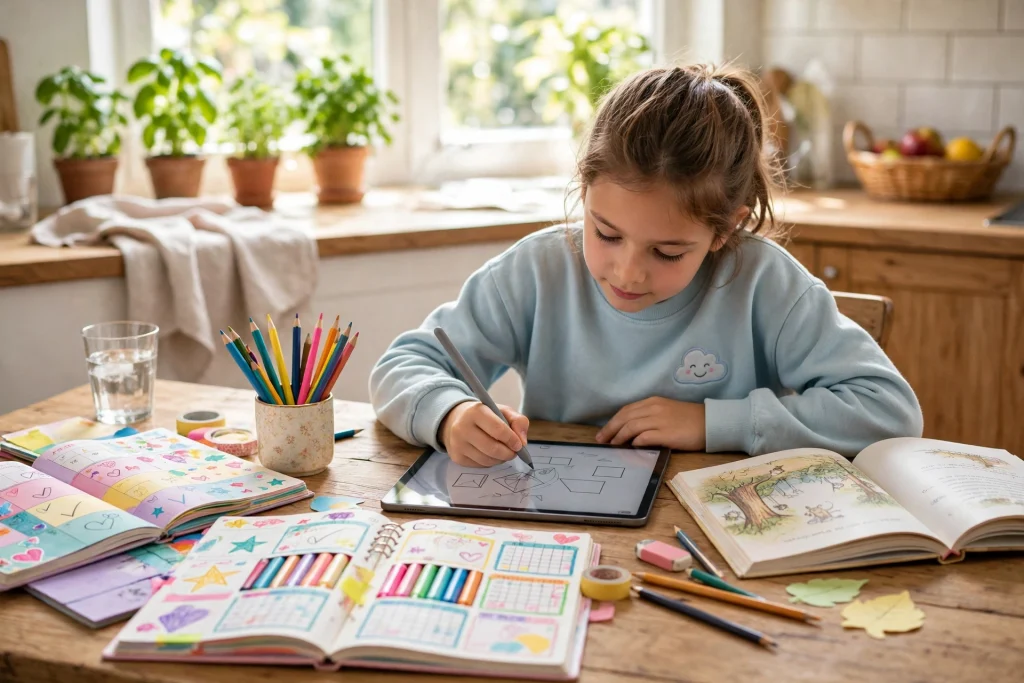
Quick answer: Parents can use GoodNotes for kids by setting up one colourful, easy-to-navigate notebook per child, with a daily homework page, a reading log and a weekly chore chart. Kids write with a stylus, tap stickers when they finish a task, and everything stays in one place — no more lost worksheets. Keep sessions short, sit nearby, and back the notebook up regularly.
GoodNotes for kids is one of the simplest ways to turn an iPad into a homework helper, a reading tracker and a chore chart — all in one app. Instead of loose worksheets, crumpled reading logs and chore charts that fall off the fridge, your child gets a single digital notebook where everything lives together. They can write by hand, draw, add stickers, tick off finished tasks and flip back to see how much they have achieved. For parents, it means fewer lost assignments, a clearer view of what needs doing, and a routine children actually enjoy coming back to.
This guide walks you through setting up GoodNotes for kids from scratch: a kid-friendly notebook, a homework routine that takes minutes a day, reading logs that build a habit, chore charts with rewards, handwriting practice, and sensible screen-time rules. You do not need to be a tech expert, and your child does not need to be either. If they can hold a pencil, they can use GoodNotes.
Table of Contents
Why GoodNotes for Kids Works So Well
Children learn best when a task feels like play. GoodNotes turns ordinary schoolwork into something hands-on: writing with a stylus feels more like drawing than typing, stickers make finishing a task satisfying, and colours let each child make their notebook truly theirs. A child who groans at a paper worksheet will often happily fill in a digital homework page simply because it feels different.
Setting Up a Kid-Friendly GoodNotes Notebook
Before your child writes a single word, spend ten minutes setting up a notebook they will love opening. A good setup removes friction: big writing spaces, clear sections and fun colours make the notebook inviting rather than intimidating.
1. Create one notebook per child
Give each child their own notebook with their name on the cover. If siblings share an iPad, separate notebooks stop pages getting mixed up and give each child ownership of their own space. Let them choose the cover colour — it sounds small, but a notebook that feels like theirs is a notebook they will open.
2. Choose big, friendly page templates
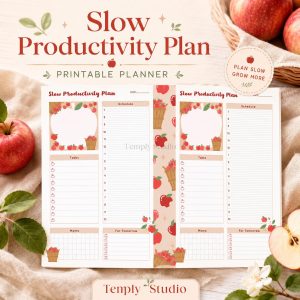
Young children need space. Pick lined or dotted templates with wide spacing so handwriting does not feel cramped. GoodNotes includes a range of paper templates, and you can also import printable planner pages as PDF templates. A daily page with a large writing area, a small checklist and a box for a sticker works well for most ages. Older children can handle narrower lines and more structured layouts.
A ready-made template saves a lot of setup time. The Children’s Daily Journal is a good starting point: it gives your child a simple daily structure to write in, and you can import it as a template and reuse the pages again and again.
3. Use colours and stickers generously
GoodNotes lets children write in any colour, highlight in pastels and drop in stickers from the Elements collection. Set up a small sticker set together — stars, smiley faces, animals, reward badges — and agree what each one means. Stickers turn completion into a small celebration.
4. Add simple navigation
Use the outline or bookmarks to create sections a child can tap: Homework, Reading, Chores, Practice. Even better, use a digital planner with built-in hyperlinked tabs, so your child taps a tab and jumps straight to the right page. The Cute Strawberry Digital Planner for Students is a cheerful example — its tabs make navigation feel like flipping through a real planner, and the design keeps younger students engaged.
A Simple Homework Routine with GoodNotes for kids
The best homework routine is the one that happens every day without a battle. GoodNotes helps because the routine is visible: open the notebook, see today’s page, work through it, tick it off. Here is a routine that works for most families.
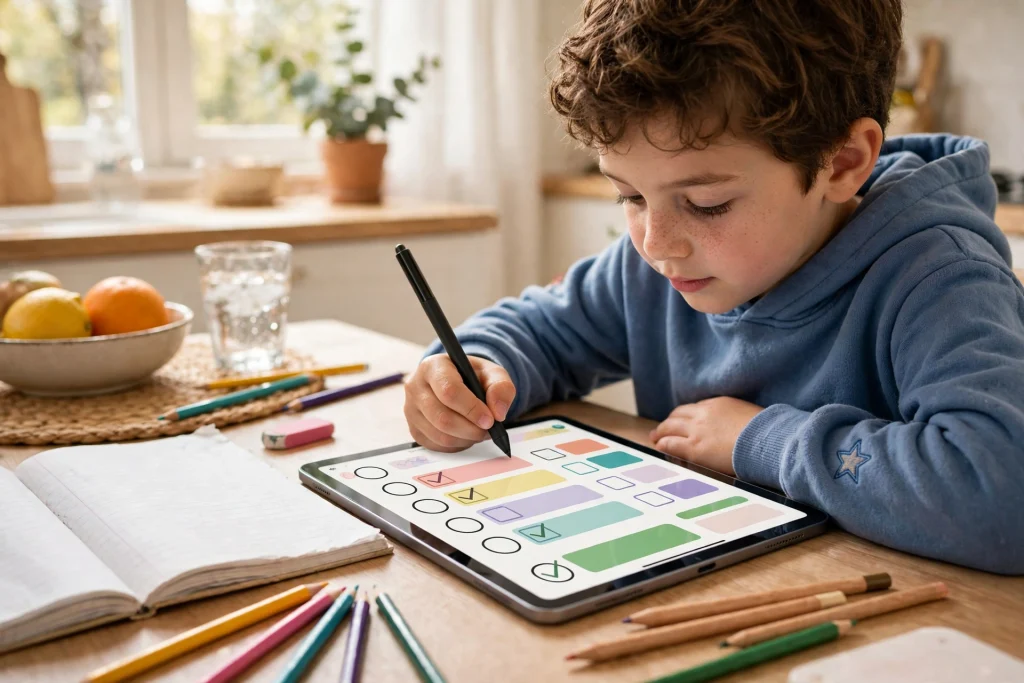
Build a daily homework page
Each day gets one page. At the top, your child writes the date and their three most important tasks. Underneath, a short checklist covers each subject: maths worksheet, spelling, reading. At the bottom, a small box asks “What did I learn today?” — one sentence is enough.
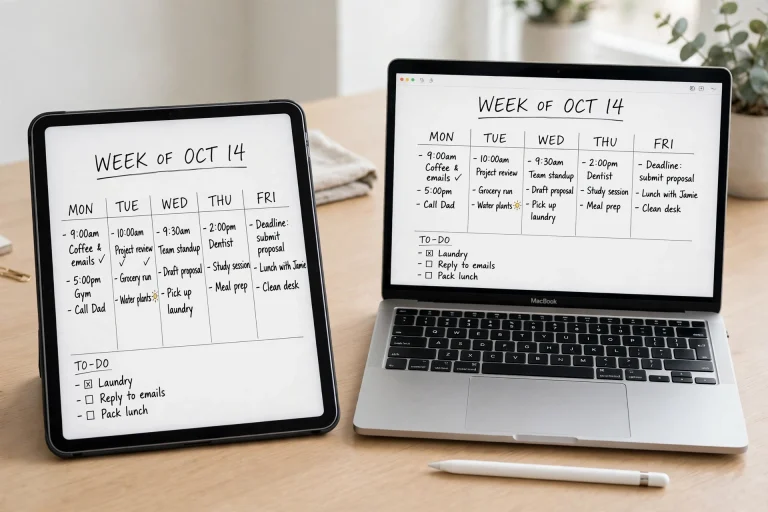
For older children, a dedicated planner adds structure. The 2026 Academic Student Planner includes assignment tracking and weekly spreads, so a child can see the whole week at a glance instead of only today. Our student planner guide explains how to use a planner like this in GoodNotes step by step.
Use an assignment tracker
Homework is not just today’s tasks — it is knowing what is due on Friday. Keep one page as an assignment tracker with four columns: subject, assignment, due date and done. Your child updates it when the teacher sets new work, and checks it each afternoon. A quick glance shows what is urgent and what can wait, which is a genuinely useful life skill as well as a homework habit.
Reading Logs That Kids Actually Want to Fill In
Reading logs have a reputation problem: on paper, they feel like homework about homework. In GoodNotes, a reading log can feel like a collection — of books finished, minutes read and personal records beaten. The trick is to make the log visual and rewarding.
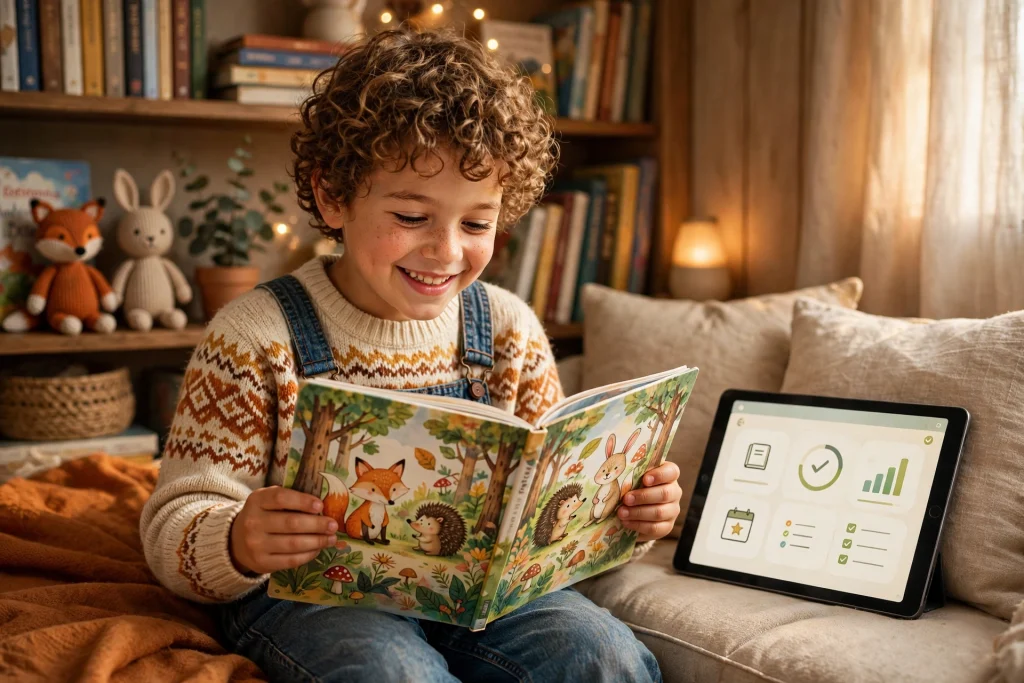
Track books, minutes and goals
Give your child a simple reading log page with columns for the date, the book title, pages read and minutes read. At the end of each week, add up the minutes together. Many children love watching a total grow, especially when they can see it in a little bar chart they colour in themselves. Draw a simple bar for each week, and let your child fill it in with their highlighter.
Set goals that are reachable. Ten minutes a day is a great start for a younger reader; twenty minutes suits a confident one. A monthly goal — four books, or three hundred minutes — gives something to aim for without pressure. When a goal is met, mark it with a special sticker and a note in the log. The log becomes a record of achievement your child can flip back through with pride.
Let them rate and review books
Add a star rating and a one-line review to each entry: “Funny!”, “Scary but good”, “I want the next one”. This turns the log from a chore into a personal book journal, and it helps children remember what they enjoyed. It also gives you wonderful insight into their taste, which makes choosing the next book much easier.
Chore Charts and Rewards in GoodNotes for Kids
A chore chart on the fridge works until it falls down, gets scribbled on or is quietly ignored. A chore chart in GoodNotes stays put, looks inviting and lets your child tick off jobs with a satisfying tap of the stylus. It also travels: the same chart works at home, at a grandparent’s house or on holiday.
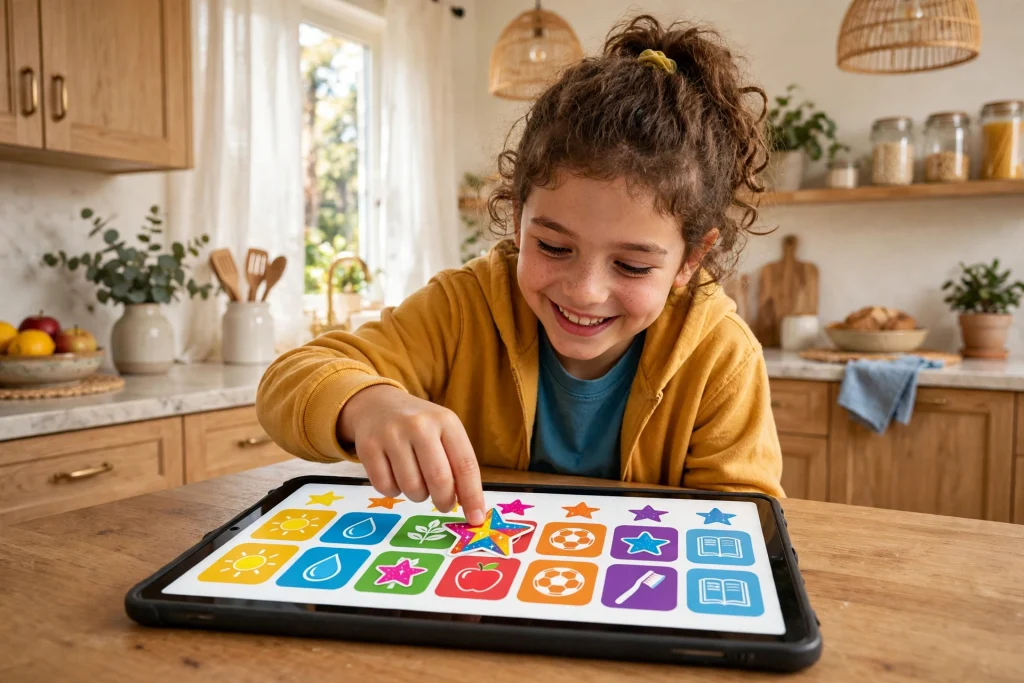
Design a weekly chore chart
Keep it simple. Across the top, the days of the week. Down the side, three to five chores matched to your child’s age: make the bed, tidy toys, feed the pet, set the table, help with laundry. Each completed chore earns a tick or a sticker in the matching box. At the end of the week, count the ticks together.
Age matters here. A five-year-old might have two chores; a nine-year-old can manage four or five. Start small and add a chore only when the current ones are happening without reminders. A chart that is too full is a chart that gets abandoned.
Build a reward system that actually motivates
Rewards work best when they are clear, immediate and agreed in advance. Ten ticks might earn a special outing, a film night or extra reading time with a parent. Let your child help choose the rewards — a reward they picked themselves is worth far more than one imposed on them. Avoid making every reward a purchase; experiences and privileges usually motivate children just as well, and they teach that effort earns meaningful things.
Use the sticker system you set up at the start. A star for each chore, a special badge for a full week, a trophy sticker for a full month. GoodNotes makes it easy to save favourite stickers as Elements, so the reward stickers are always one tap away.
Handwriting Practice in GoodNotes
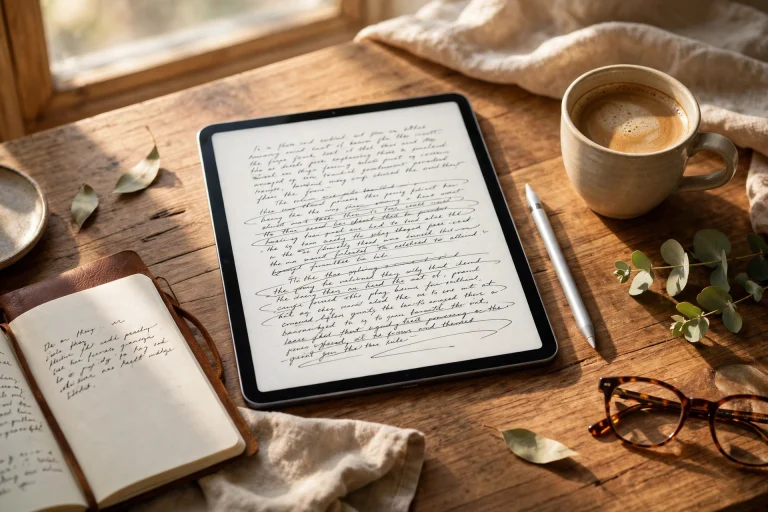
GoodNotes is a natural fit for handwriting practice because it feels like writing on paper, with the bonus of infinite pages and a perfect eraser. Children can practise letters, words and sentences without wasting paper, and they can repeat a tricky letter as many times as they like.
Start with letters, then words, then sentences
For younger children, use a lined template and write one letter per line, with your child tracing it and then writing it alone. Move to simple words, then short sentences. Keep practice sessions to five or ten minutes — little and often beats a long, frustrated session every time.
Use the zoom window for neat writing
GoodNotes has a zoom window that magnifies a section of the page while your child writes. This is genuinely helpful for small hands: they write big in the magnified window, and the writing appears small and neat on the page. Show your child how it works once, and they will use it happily on their own.
Keeping It Fun — and Screen Time Sensible
An iPad is a tool, not a babysitter, and GoodNotes works best when it is part of a balanced day. A few sensible habits keep it that way.
Set clear time boundaries
Agree in advance how long GoodNotes sessions last. Homework time, reading time and chore-chart time are all part of the routine, but they should have an end. When the daily page is done and the reading log is updated, the iPad goes back on its shelf. A clear finish line helps children focus, because they know the session is short and the reward is free time afterwards.
Keep the iPad in shared family space
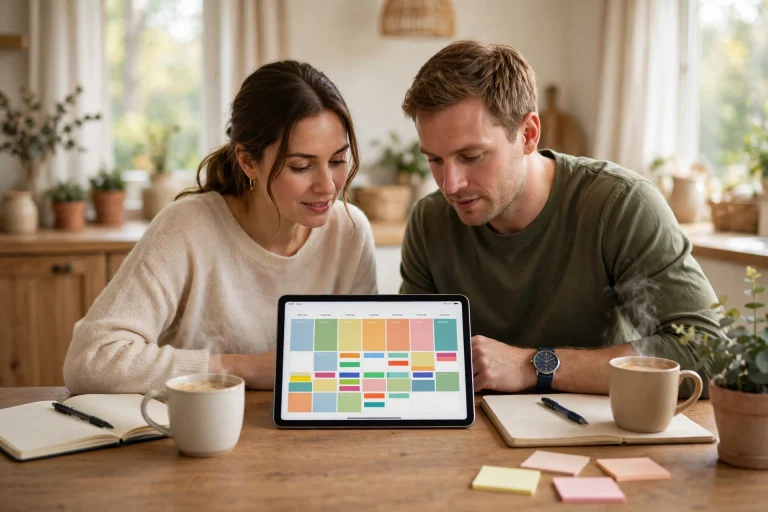
GoodNotes sessions should happen where a parent can see and join in — the kitchen table, the living room, a shared desk. This keeps the iPad a family tool rather than a private screen, and it means help is always nearby when a child gets stuck. It also avoids the need for complicated account or sharing setups: the notebook lives on the family iPad, in a space everyone can see.
Backing Up Schoolwork So Nothing Gets Lost
Digital work can disappear just as easily as paper if it is never backed up. A few minutes of setup now saves a lot of tears later.
Turn on iCloud sync
GoodNotes can sync notebooks through iCloud, which means the notebook is stored safely even if the iPad is dropped, lost or replaced. Check that sync is switched on for GoodNotes in the iPad’s settings, and confirm the notebook appears on any other family device signed into the same iCloud account. This is the single most important step in this whole guide.
Export a PDF copy each term
At the end of each school term, export the notebook as a PDF and save it somewhere safe — a family computer, a cloud drive, or both. A PDF export is a permanent snapshot of your child’s work: homework, reading logs, chore charts and handwriting practice, all in one file. It is also a lovely keepsake to look back on in a few years.
Putting It All Together: A Week with GoodNotes for Kids
Here is what a typical week looks like once the system is running. On Monday, your child opens their notebook, checks the assignment tracker, and plans the week. Each afternoon, they work through the daily homework page, tick off chores on the chart, and read for ten or twenty minutes, logging the book and minutes. The whole system takes a few minutes a day — but those minutes add up to a child who knows what needs doing, can find their work, and feels proud of their progress.
Start small if you need to. Choose one thing — the daily homework page, or the reading log, or the chore chart — and get that working for two weeks before adding the next. A notebook that does one thing well is far better than a notebook that tries to do everything and overwhelms your child on day one.
Frequently Asked Questions
What age is GoodNotes good for?
GoodNotes works well for children from around age five or six, once they can hold a stylus and write basic letters. Younger children will need a parent sitting with them and very simple pages — big lines, one or two tasks, lots of stickers.
Can kids use GoodNotes without an account?
Yes. GoodNotes itself does not require a child to have their own account — it runs on the family iPad under the parent’s Apple ID, with iCloud sync handled through the family account. Keep the iPad in shared family space, use the parent’s account for purchases and sync, and there is no need to set up any account in your child’s name.
How do I stop my child losing their homework?
The beauty of GoodNotes is that homework is very hard to lose: it lives in one notebook that syncs to iCloud, instead of on a loose sheet that can be left anywhere. Make sure iCloud sync is switched on, teach your child to always work in the same notebook, and export a PDF copy at the end of each term as a backup.
Does GoodNotes work for handwriting practice?
Yes, it is one of the best digital tools for handwriting practice. Children write with a stylus on lined templates, use the zoom window to write neatly, and can erase and retry a letter as many times as they like without wasting paper. Short, regular practice sessions — five to ten minutes, a few times a week — build neat handwriting faster than occasional long sessions.
GoodNotes for kids is not about adding more screen time to your child’s day. It is about making the schoolwork that already exists easier to manage, more enjoyable to do and impossible to lose. One notebook, a few minutes a day, and a system your child actually likes — that is a routine worth building.
Ready to get started? The 2026 Academic Student Planner gives your child a complete, ready-made system for homework, assignments and weekly planning in GoodNotes — just import it, add their name to the cover, and begin. Their best school year might start with a single tap.
Temply Studio
Stop chasing your goals with sticky notes and scattered notebooks. Our premium digital planners and Canva templates are designed to help you plan with intention, stay consistent, and actually enjoy the process.
Questions about this guide?
Ask about the planner, share how you use it, or tell us what to cover next. Your email stays private.