




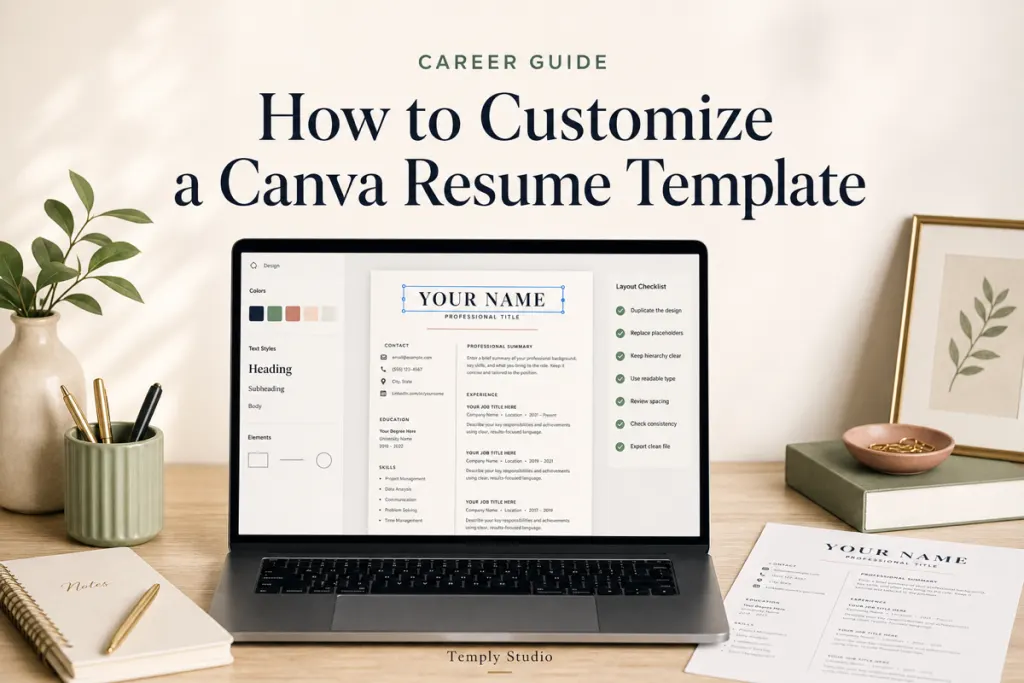
Deliver a client copy without exposing the working master
- Keep an untouched master in the project owner’s source folder. Duplicate it before client-specific changes.
- Remove hidden pages, speaker notes, cropped-off objects, comments, and old revisions that should not be shared. Canva warns that public copies can reveal content that is not immediately visible.
- Decide what the client should be able to do. For a template they will customize, use a template link when the account and plan allow it. For review only, select view/comment access. Do not send an edit link to the master by default.
- Share the copied file using the intended permission. Canva’s current help says Template links are available on specified paid, education, and nonprofit plans; do not promise this option for every account.
- Test as a recipient: open the link from a separate signed-out browser or an authorized test account, confirm the correct design appears, make a test copy if allowed, and verify that the source master remains unchanged.
- Send a short handoff: which elements are editable, which are locked, how the client should make a copy, and where to request help. Use the actual contract/license, not invented usage terms.
Fictional client handoff text: “Open the template link and create your own copy before editing. The logo and footer are locked in this example; replace the sample text and images in your copy. If you cannot access the template, contact the project contact named in your handoff email.”
Sources checked 21 Nov 2026:
- Canva Template link eligibility and steps: https://www.canva.com/help/share-template-link/
- Canva sharing permissions and warning about hidden/cropped content and notes: https://www.canva.com/help/share-via-link-or-email/
- Canva Brand Kit Builder feature overview: https://www.canva.com/help/brand-kit-builder/
- Current plan comparison: https://www.canva.com/pricing/
Write editing boundaries into the handoff
Clients need to know what they can edit safely and what they should not change. Identify locked brand elements, image licenses, fonts, page sizes, and any elements that must remain for accessibility or print accuracy. If the client can duplicate pages, explain how to keep headings, links, and margins consistent.
Test the copy with a fresh Canva account or permission level close to the client’s actual access. A link that works for the owner may expose the master, require a paid feature, or fail for the recipient. Record the exact link type used, the date tested, and the account role. This prevents a handoff that looks complete internally but fails for the client.
Set a client-safe color system
Color decisions should be documented before the client copy is shared. Give each color one job instead of asking the client to guess which swatches are interchangeable.
- Text color: Use a stable dark neutral for long reading text.
- Heading color: Choose one primary brand or theme color, with a fallback neutral if the design is reused.
- Background color: Keep large areas quiet enough that text remains readable.
- Accent color: Reserve it for links, labels, icons, or small highlights.
Test the palette in the real template pages, not only in a color strip. Check headings, body copy, buttons, tables, lines, and image overlays. If the template may be printed, remember that screen color and home-printer output can differ; do not promise exact printed color. Where accessibility matters, check contrast with a recognized contrast-checking tool and treat the result as a design check, not a certification.
Choose fonts that survive handoff
A template can look finished in the owner account and break in the client account if the recipient does not have the same fonts, plan, or brand kit access. Keep the font system simple:
- Choose one heading font and one reading font before adding decorative alternatives.
- Confirm the fonts are available to the type of Canva account the client will use.
- Check the fonts at the sizes customers will actually read, including mobile or print size where relevant.
- Document which font is the fallback if a recipient cannot access the preferred font.
- Do not imply that a font license transfers beyond what Canva or the font provider permits.
Before delivery, open the client copy with permission similar to the client’s account. Replace one word in a heading and one paragraph of body text. If the layout collapses, adjust spacing, text-box width, or instructions before handoff rather than expecting the client to repair the template.
Write color and font rules into the handoff
The handoff note can be short: name the heading font, body font, primary color, accent color, and what the client may safely change. If certain pages should remain locked or unchanged, say so. Clear constraints make the template easier to use and reduce support messages caused by accidental edits.
Client-copy checklist
- The master remains separate and untouched.
- Client-facing pages contain no hidden drafts, notes, or unused assets.
- Editing instructions match the client’s plan and permissions.
- Support boundaries and revision responsibilities are written down.
Related guides
Temply Studio
Stop chasing your goals with sticky notes and scattered notebooks. Our premium digital planners and Canva templates are designed to help you plan with intention, stay consistent, and actually enjoy the process.
Questions about this guide?
Ask about the planner, share how you use it, or tell us what to cover next. Your email stays private.